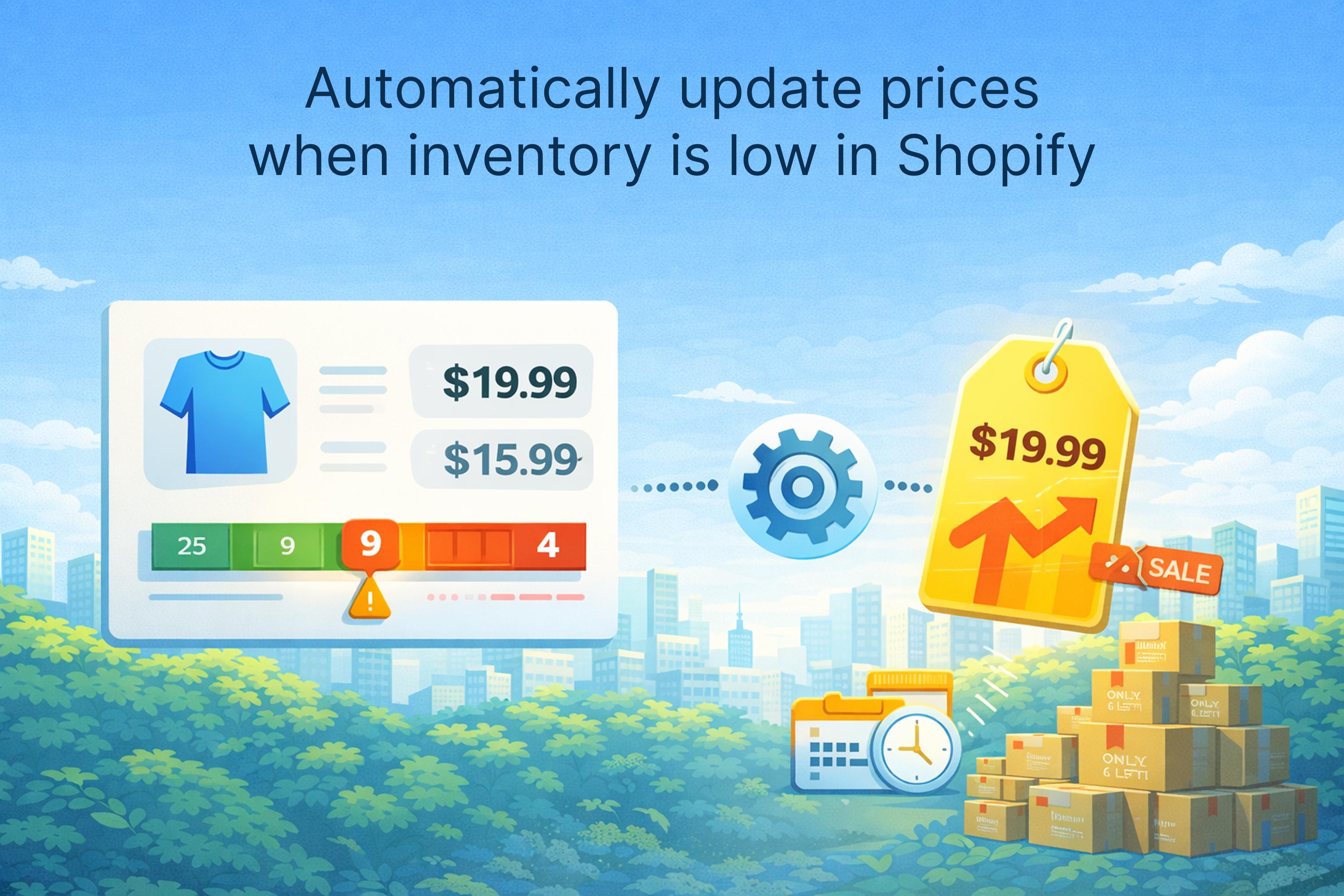
For many Shopify stores, inventory and pricing are tightly connected. When stock is low, you may want to reduce discounts, raise prices slightly, or at least stop running aggressive promotions. Doing this manually is manageable for a few SKUs, but becomes unworkable once you have hundreds or thousands of products.
In this guide, we'll look at how to think about inventory-based pricing, what Shopify can and cannot do out of the box, and how to use rules and bulk editor apps to automatically update prices when inventory is low.
Why Link Prices to Inventory Levels?
Tying your prices to inventory isn't just about squeezing out more margin. It can help you:
- Protect margins on scarce items – When you only have a few units left, you may not want to sell at a deep discount.
- Smooth demand – Higher prices on low-stock items can slow down sales while you restock.
- Avoid disappointment – Ending promotions or increasing prices before going out of stock reduces the chance of overselling.
- Encourage alternatives – When a hero product is low, you might keep its price firm and run promotions on substitutes instead.
The challenge is operational: someone has to notice low inventory and then adjust prices, tags, or campaigns. Doing this by hand doesn't scale.
What Shopify Offers Natively (and Where It Stops)
Out of the box, Shopify lets you track inventory, set notifications for low stock, and see inventory reports. You can:
- Enable inventory tracking per product or variant.
- Set "Continue selling when out of stock" on or off.
- Use low stock alerts via email or apps.
However, Shopify does not provide a built-in way to say:
- "If inventory falls below 10, increase the price by 10%."
- "When stock is low, remove this product from a sale collection."
- "When inventory is under a threshold, change tags or metafields automatically."
To connect inventory levels with price changes, you either need to build your own automation logic or use a dedicated app that supports inventory-based rules.
Manual Approaches to Handling Low-Stock Pricing
Before moving to automation, many stores start with manual workflows such as:
- Reviewing low-stock reports weekly and adjusting prices one by one.
- Exporting low-stock products to CSV, updating prices, and re-importing.
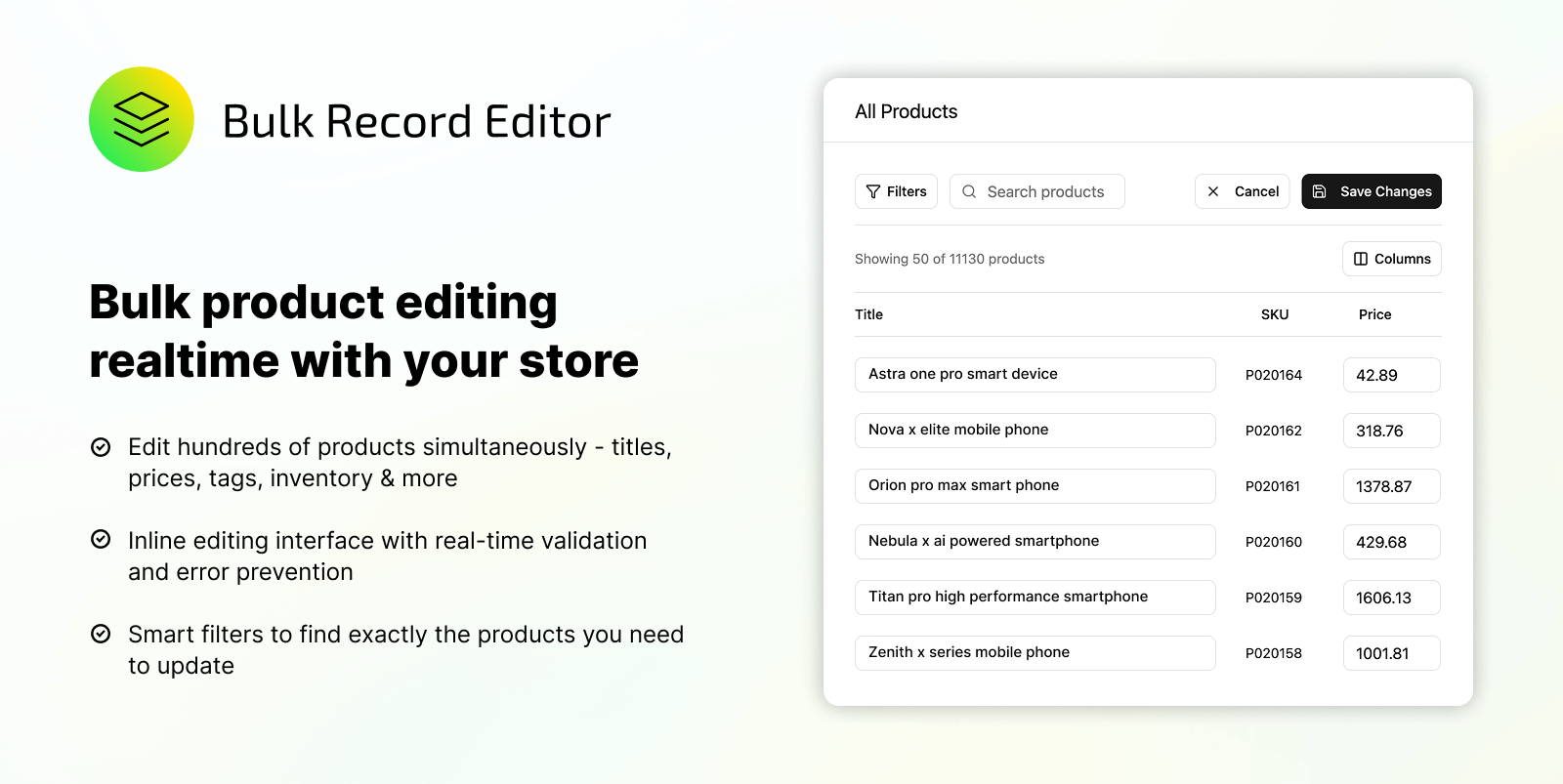
- Using the default bulk editor after filtering for low inventory.
These methods can work for small catalogs or rare changes, but they share some drawbacks:
- They rely on someone remembering to run the process.
- They take time away from higher-value work like merchandising and marketing.
- They are prone to human error, especially when done under time pressure.
Filtering Low-Inventory Products in Shopify
Even if you plan to automate later, it's useful to know how to isolate low-stock products using Shopify's admin:
- Go to Products > Inventory in your Shopify admin.
- Use filters or sort by Available quantity.
- Identify products or variants below your threshold (for example, less than 10 units).
From there, you can click through to individual products or, in the Products list, apply filters to see just those items in the default bulk editor. It's still a manual process, but it forms the basis for defining more formal rules later.
Using a Bulk Editor App for Inventory-Based Price Rules
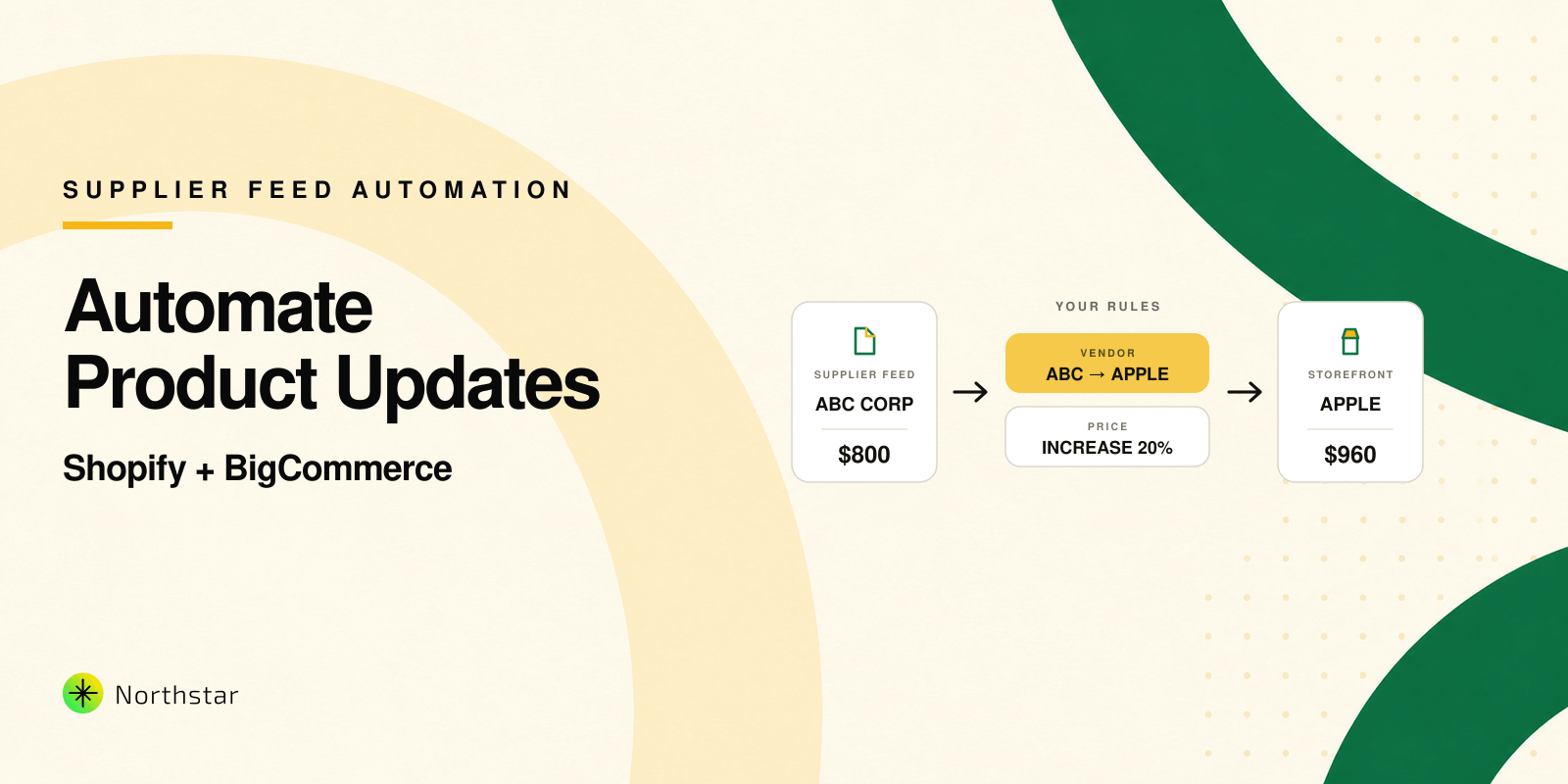
A bulk editor app can bridge the gap between inventory data and pricing logic. Instead of eyeballing reports, you define rules like "when inventory is low, adjust price or tags in this way" and let the app handle the heavy lifting.
In a bulk editor such as Shopify Bulk Editor by NorthStar, you typically:
- Define your inventory condition – for example, "inventory quantity less than 10" or "between 1 and 20 units".
- Add additional filters – limit the rule to certain collections, vendors, or tags so you're only adjusting relevant products.
- Specify your pricing action – increase price by a percentage, remove a discount, or change compare-at pricing.
-
Optionally adjust tags or metafields – for example, add a
low-stocktag or update a metafield used for badges on the storefront. - Preview and apply – review affected products and the before/after values before applying the update.
This turns inventory levels into a practical input for pricing, rather than something your team has to monitor manually every day.
Scheduling and Recurring Inventory Checks
Inventory-based rules are most powerful when they run on a schedule instead of just once. Rather than reacting when someone notices a stock issue, you can set up recurring jobs like:
- Daily or weekly checks for low stock in specific collections.
- Regular removal of low-stock items from sale collections.
- Automatic restoration of standard pricing when inventory recovers.
If your bulk editor supports scheduling, you can configure these jobs to run at off-peak times, reducing the risk of conflicts with live campaigns or major releases.
Designing Practical Inventory-Based Pricing Rules
The best rules are simple enough to understand but targeted enough to be useful. Examples include:
- "For Collection = Limited Edition, if inventory < 5, increase price by 10%."
- "If tag = clearance and inventory < 3, remove from clearance and restore regular price."
- "If inventory between 1 and 10, add tag
low-stockfor storefront messaging."
Start with a small number of high-impact rules and expand only when you're confident they behave correctly over time.
Safeguards and Best Practices
Because pricing touches revenue, it's important to build safeguards into any automated approach:
- Always export a backup of affected products before enabling a new rule.
- Test on a small segment of products or a single collection before rolling out store-wide.
- Monitor key metrics such as conversion rate, average order value, and revenue per visitor after a rule goes live.
- Document your rules so your team knows which conditions drive which price changes.
Good documentation and small, controlled tests go a long way toward keeping automation predictable and reversible.
Frequently Asked Questions
Can I do inventory-based pricing in Shopify without apps?
You can approximate it using reports, manual checks, and the default bulk editor, but there is no native way to automatically change prices when inventory crosses a threshold. For true automation, you need custom scripts or an app that supports inventory conditions.
Will inventory-based price changes confuse customers?
They don't have to. The key is to avoid extreme swings and to be consistent within categories. Many customers already expect limited or scarce items to be discounted less or priced higher, especially in niches like collectibles, fashion, or specialty goods.
How often should inventory-based rules run?
It depends on how fast your inventory moves. Some stores are comfortable with daily jobs; others prefer weekly to avoid too much churn. Start with a conservative schedule and adjust as you learn how your catalog responds.
Automatically updating prices when inventory is low turns a reactive process into a controlled, rule-driven system. Instead of chasing low-stock issues one by one, you design the logic once and let your tools enforce it, with room for human review where it matters most.