Tags are one of the simplest tools in Shopify, but they quietly power a lot: collections, filters, search behaviour, automation rules, and even third-party integrations. As your catalog grows, it's easy for tags to become messy, inconsistent, or outdated.
In this guide, we'll walk through practical ways to find and replace tags in Shopify, from quick fixes using the default admin to safer, rule-based updates with bulk editor apps when you're working at scale.
Why Clean, Consistent Tags Matter in Shopify
Tags might seem small, but they sit in the middle of many storefront and back-office workflows. Clean tags help you:
- Build accurate collections – especially when you use "tag equals" or "tag contains" conditions.
- Power filters and faceted navigation – so customers can actually find what they're looking for.
- Drive automation – for example, tags used by email flows, inventory alerts, or order rules.
- Keep reporting meaningful – when tags are standardised, analytics and segmentation become easier.
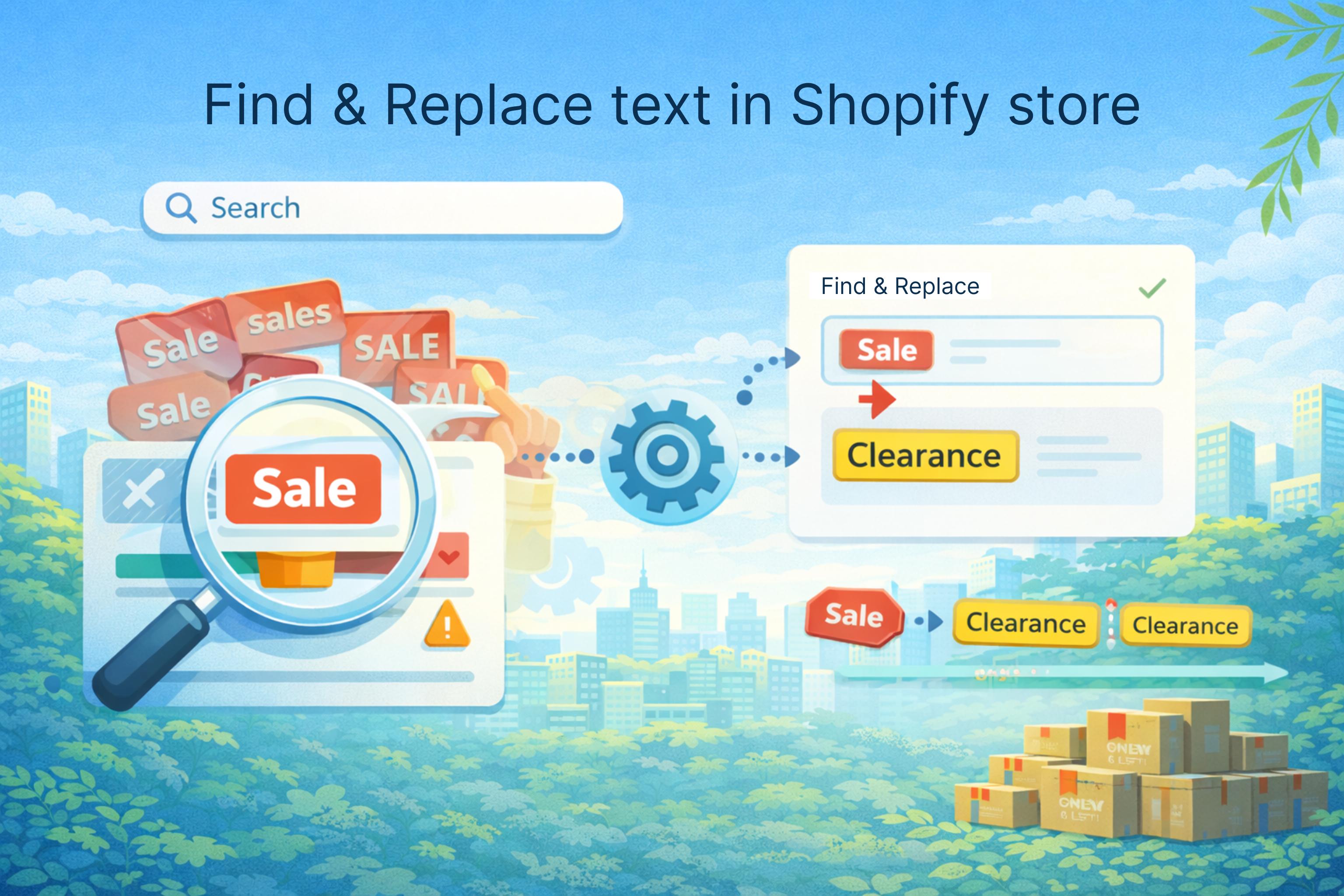
Inconsistent tags (for example, Sale, sale, sales) create extra work and can
break rules or collections that rely on specific values.
Finding Products by Tag in Shopify
The first step in any find-and-replace operation is seeing where a tag is used. In Shopify's admin:
- Go to Products > All products.
- Click Filter at the top of the product list.
- Choose Tagged with as the filter condition.
- Enter the tag you want to find, for example
Saleorsummer-2024.
Shopify will show all products that currently use that tag. From here, you can either edit tags one by one or move on to bulk methods if you're dealing with a larger set.
Manually Replacing Tags on Individual Products
For very small changes, the simplest approach is to edit tags directly on a product page:
- Click into a product from the filtered list.
- Scroll to the Tags section.
- Remove the old tag and add the new one.
- Save the product.
This works if you only have a few products to update, but it doesn't scale and it's easy to miss items if you're working quickly.
Using Shopify's Default Bulk Editor to Change Tags
Shopify's default bulk editor lets you update tags for multiple products at once:
- Filter products by the tag you want to replace, as described earlier.
- Select the products you want to edit (or select all on the page).
- Click Edit products to open the bulk editor grid.
- Add the Tags column if it isn't already visible.
- For each row, replace the old tag with the new one, keeping any other tags intact.
For small batches, this is manageable. For larger sets, manually editing a text field full of tags quickly becomes error-prone. One missed comma or accidental deletion can remove tags you meant to keep.
Find-and-Replace Tags with CSV Export and Import
When you have many products using the same tag, CSV can give you more control over find-and-replace operations:
Step 1: Export Products Using the Tag
- Filter products by the tag you want to replace.
- Click Export and choose to export the current search results.
- Download the CSV and open it in Excel or Google Sheets.
Step 2: Use Spreadsheet Find-and-Replace
- Locate the Tags column in your spreadsheet.
- Use your spreadsheet's Find and Replace feature to replace the old tag value with the new one.
-
Be careful to match whole tags where possible (for example, replacing
saleas a tag without touching words that simply contain "sale").
Step 3: Import Back into Shopify
- Save the edited CSV.
- In Shopify, go to Products > Import.
- Upload the CSV and confirm that it will update existing products.
This approach is powerful but unforgiving. A misconfigured find-and-replace can remove tags unexpectedly or create new, messy variations. Always keep a backup of the original export so you can restore if needed.
Limitations of Native Methods for Tag Maintenance
Shopify's built-in tools and CSV workflows can get the job done, but they come with practical limitations when you're maintaining tags at scale:
- No preview of all changes across the store before applying them.
- No versioning or rollback specific to tag changes.
- Limited conditional logic – you can't easily say "replace this tag only when combined with that collection or vendor".
- High reliance on manual accuracy in spreadsheets and text fields.
As your product count and tag usage grow, these limitations become costly in both time and risk.
Using a Bulk Editor App to Find and Replace Tags Safely
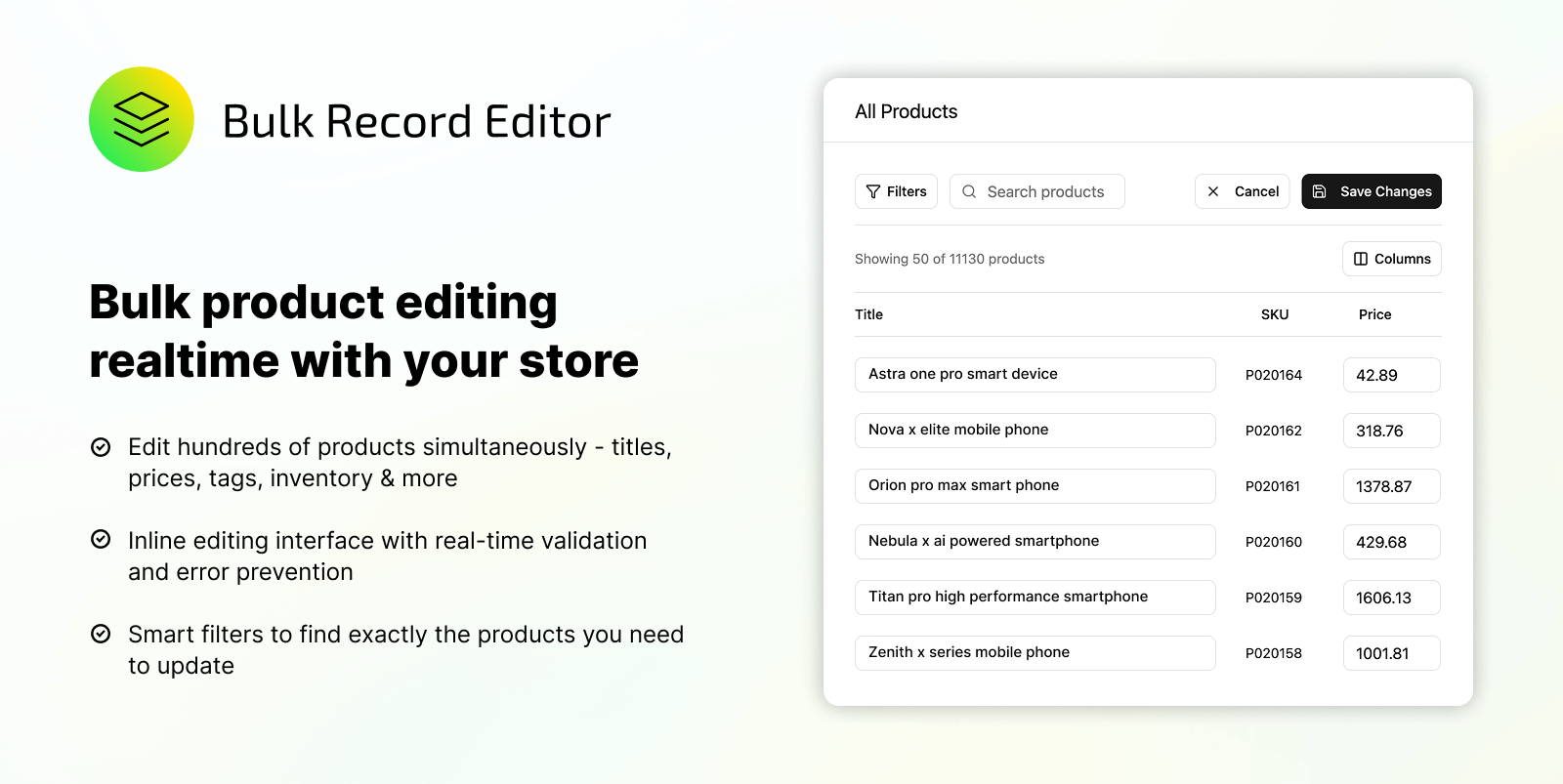
A dedicated bulk editor app can make tag maintenance more controlled and repeatable. Instead of one-off edits, you define rules like "find this tag under these conditions and replace it with that tag".
In a bulk editor such as Shopify Bulk Editor by NorthStar, a typical tag find-and-replace workflow looks like this:
- Select your target products – filter by tag, collection, vendor, product type, or any combination.
-
Define the tag rule – for example, "remove tag
Saleand add tagclearance" or "replaceSummer-2023withSummer-2024". - Preview the affected products – see which items will change and how before you apply the rule.
- Apply or schedule – run immediately, or schedule for a future date if the change is tied to a campaign.
Because the logic lives in rules, it's easier to reuse or adjust the same pattern later instead of redoing everything by hand.
Best Practices for Tag Naming and Replacement
Good tag hygiene reduces how often you need to run large find-and-replace jobs. A few helpful guidelines:
- Standardise case – choose
lowercase-with-hyphensorTitle Caseand stick to it. - Avoid near-duplicates – for example, pick one of
sale,on-sale, ordiscount, not all three. - Document your tag conventions – especially for tags that drive collections, filters, or automation.
- Review legacy tags periodically – remove tags that no longer serve a purpose to keep the system lean.
Frequently Asked Questions
Can I bulk remove a tag from all products?
Yes. Filter products by the tag, open them in the default bulk editor, and remove the tag from the Tags field for each row. Alternatively, use CSV or a bulk editor app to remove the tag in one operation, which is safer for larger catalogs.
What happens if I change tags that are used in automated collections?
If a collection is defined using tag conditions, changing or removing those tags can cause products to drop out of the collection. Before running large tag updates, review which collections rely on those tags and adjust your rules or collection logic as needed.
Should I use tags for everything?
Tags are flexible, but they're not always the best tool for structured data. For information that has a clear, repeatable format or needs to power specific features, consider using product types, metafields, or dedicated fields instead. Tags work best for lightweight labels, campaigns, and simple groupings.
Learning how to find and replace tags in Shopify gives you more control over how your catalog is organised and how your store behaves. With the right mix of filters, CSV workflows, and rule-based bulk editing, you can keep tags clean without turning maintenance into a full-time job.