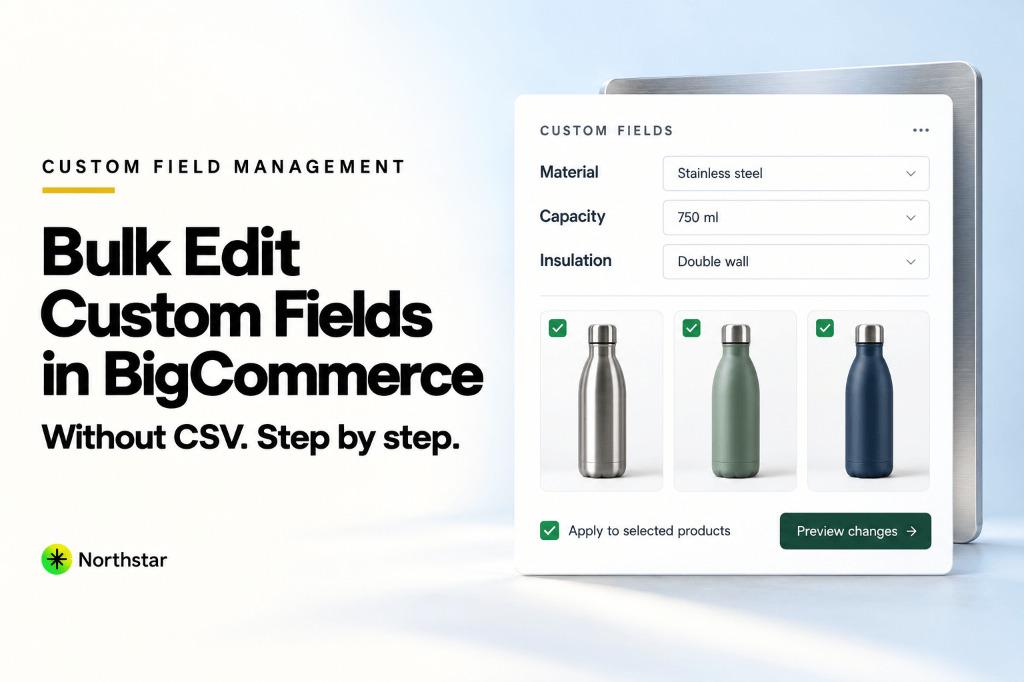
In BigCommerce, custom fields are the backbone of technical product data. Whether you use them to power faceted search filters (like Material, Battery Type, or Operating Voltage), display technical spec tables on Stencil storefront themes, or store internal warehouse bins, custom fields give your catalog rich structured data.
However, managing custom fields in BigCommerce natively is notoriously frustrating. If you need to bulk edit custom fields in BigCommerce without CSV, you quickly discover that the native BigCommerce control panel offers almost no bulk tools for this data type. Opening each product one by one to add or modify custom fields takes hours—and relying on BigCommerce CSV exports frequently corrupts your data.
In this step-by-step tutorial, we will explore why traditional CSV imports fail with custom fields, how BigCommerce custom fields interact with storefront faceted search, and exactly how to add, update, and clean up custom fields across your entire catalog in minutes using a modern, spreadsheet-free workflow.
Why CSV Imports Break BigCommerce Custom Fields
Every ecommerce manager who has attempted a bigcommerce custom fields bulk update using the default CSV import/export tool has a war story. While CSV files work reasonably well for simple flat fields like retail price or product title, custom fields are fundamentally relational key-value pairs.
Here is why the native CSV workflow causes chronic catalog headaches:
-
The Multi-Column Nightmare: BigCommerce exports custom fields across horizontal columns formatted as
Product Custom Fields(with semicolon delimiters likeKey=Value;Key2=Value2) or as numbered column pairs (Custom Field 1 Name,Custom Field 1 Value, up toCustom Field 100). Editing these strings in Microsoft Excel or Google Sheets leads to accidental delimiter deletion, broken quote escaping, and misplaced columns. -
Accidental Custom Field Duplication: If your CSV column name casing or spacing does not match existing records perfectly (e.g.,
Materialvs.material), BigCommerce creates a second custom field entry on the product instead of updating the existing one. Your product ends up with duplicate, competing values. - Silent Deletions and Overwrites: When re-importing a CSV, if an existing custom field column is left empty or omitted from the template, BigCommerce may either overwrite the field with blank data or silently drop attributes that took weeks to build.
- Locked Native Bulk Grid: BigCommerce features a built-in inline spreadsheet editor under Products > View Products > Bulk Edit, but custom fields are completely excluded from this grid view. You cannot view, filter, or edit custom fields in the native bulk table at all.
Warning on Stencil Faceted Search: BigCommerce faceted navigation relies on exact case-sensitive matches. If 500 products have
Material: Stainless Steeland 200 products havematerial: Stainless Steel(lowercase key), your storefront search will generate two fragmented facet filters for shoppers, severely degrading your site navigation.
The Modern Alternative: Visual In-App Bulk Custom Field Editing
Instead of risking CSV corruption, high-growth merchants use NorthStar Bulk Product Editor for BigCommerce. With dedicated BigCommerce custom field management, you can filter your catalog by brand, category, inventory, or search query, configure bulk custom field rules, preview the exact before-and-after values, and execute the batch update directly via BigCommerce APIs without downloading a single file.
Overview: 5 Custom Field Operations You Can Run in Bulk
- Add Custom Field: Append a new key and value to all matching products (skips duplicates automatically).
- Update Custom Field Value: Overwrite the value for an existing key across thousands of items in one click.
- Find & Replace Inside Custom Fields: Fix spelling mistakes or rebranding changes within specific field values.
- Remove Custom Field by Key: Erase outdated or deprecated custom fields across targeted product categories.
- Clear All Custom Fields: Wipe clean obsolete legacy metadata before importing fresh supplier specifications.
Step-by-Step Tutorial: How to Add Custom Fields to All Products in BigCommerce
Let's walk through an end-to-end tutorial demonstrating how to add custom fields to all products in BigCommerce or update existing fields across a specific product segment without CSV spreadsheets.
Step 1: Filter and Select Your Target Products
First, launch NorthStar BigCommerce Bulk Editor from your BigCommerce Control Panel apps menu. Use the smart filter engine to pinpoint the exact products requiring custom field adjustments:
- By Category: Target all items under Industrial > Power Tools or Apparel > Footwear.
- By Brand: Select all products from a specific supplier or manufacturer.
- By Custom Field Existence: Filter for products where a key (e.g.,
Warranty) is currently missing or blank. - By SKU or Title Keyword: Filter by SKU prefixes or title patterns.
The app displays the matching product count instantly, ensuring you only operate on the exact records you intend to update.
Step 2: Choose the Custom Field Action
In the bulk action configuration drawer, select Custom Fields as your target attribute. NorthStar provides dedicated operational modes:
- Add If Not Exists: Inserts the custom field only if the product does not already possess that exact key name.
- Update Value: Updates the value if the key exists, or creates it if missing.
- Find and Replace: Replaces specific text inside existing custom field values (e.g., replace
Made in USAwithManufactured in USA). - Delete Field: Permanently removes the custom field key and its value from all filtered products.
Step 3: Define Your Custom Field Key and Value
Enter your standardized key name and intended value. For example:
- Custom Field Key:
Material - Custom Field Value:
100% Organic Ring-Spun Cotton
You can also use dynamic catalog tokens to construct intelligent custom fields automatically. For example, setting the value to {{brand}} Genuine Equipment or SKU: {{sku}} dynamically pulls product attributes into your custom field strings without manual typing.
Rule Configuration Example:
{
  "target_filter": {
    "category": "Outdoor Gear > Tents",
    "brand": "Cascade Outfitters"
  },
  "action": "upsert_custom_field",
  "field_key": "Waterproof Rating",
  "field_value": "3000mm Hydrostatic Head",
  "preserve_existing": true
}
Step 4: Audit Proposed Changes with the Live Visual Diff Preview
Never run blind catalog updates. Before writing a single byte to your BigCommerce store, click Preview Changes. NorthStar renders a side-by-side comparison table highlighting:
- Product Thumbnail, Title, and SKU.
- Current Custom Fields: Existing key-value pairs on the product.
- Proposed Changes: Highlighted in green for additions, blue for updates, and red for removals.
- Conflict Detection: Alerts you if adding a key would collide with an existing field of differing letter casing.
| SKU | Product Title | Current Custom Field | New Custom Field (Preview) | Status |
|---|---|---|---|---|
TNT-ALPIN-01 |
Alpine 3-Season Tent | None | + Waterproof Rating: 3000mm | Ready to Apply |
TNT-ALPIN-02 |
Alpine 4-Season Expedition Tent | Waterproof Rating: 2000mm |
→ Waterproof Rating: 3000mm | Ready to Apply |
TNT-BASE-01 |
Campground Family Dome Tent | None | + Waterproof Rating: 3000mm | Ready to Apply |
Step 5: Apply Changes with Asynchronous API Safety & 1-Click Rollback
Click Apply Bulk Update. The job processes securely in the background via BigCommerce's high-speed REST v3 Catalog API. You do not need to keep your browser tab open; the app handles BigCommerce rate limits automatically without timing out.
Once complete, a comprehensive execution summary logs every modified product. If you ever realize you entered the wrong value or applied the rule to the wrong category, you can open the job history and click Rollback to restore your previous custom fields instantly.
5 Common Real-World BigCommerce Custom Field Scenarios
1. Setting Up Faceted Navigation Filters for a New Product Line
When introducing a new product category (like home espresso machines), you need facets for Boiler Type, Portafilter Size, and Pump Pressure. Instead of opening 150 espresso machines individually, filter by the category and bulk add these three custom fields in three 30-second passes.
2. Standardizing Supplier Specifications Across Multiple Feeds
Different suppliers format specifications inconsistently: Supplier A calls it Weight_Lbs, Supplier B calls it Ship Weight, and Supplier C calls it Item Weight. With custom field management for BigCommerce, you can find-and-replace or rename keys across thousands of products so your storefront displays a unified spec table.
3. Adding B2B Compliance & Regulatory Notes
When compliance regulations require a Prop 65 Warning or CE Certification badge on all electrical goods, you can filter by product type and bulk inject the required regulatory custom field across your entire catalog in a single operation.
4. Bulk Updating Manufacturer Warranty Information
If a major brand extends its factory warranty from 1 year to 3 years, you can filter all products by that brand, target the Warranty custom field, and bulk update the value to 3-Year Limited Manufacturer Warranty without touching pricing, inventory, or image data.
5. Cleaning Up Deprecated Custom Fields
Over years of catalog management, stores accumulate obsolete custom fields from old marketing campaigns or retired apps. You can search for unused keys (e.g., Holiday Sale 2023) and bulk delete them from all 10,000 products to keep your database lean and clean.
Also selling on Shopify? If you manage stores across both platforms, check out our guide on Shopify bulk metafield management to achieve the same spreadsheet-free automation in Shopify 2.0.
Frequently Asked Questions About BigCommerce Custom Fields
How do custom fields differ from product options in BigCommerce?
Product options (like Size or Color) alter SKU variants and are selectable by customers before adding an item to the cart. Custom fields are descriptive key-value metadata (like Material: Stainless Steel or Assembly Required: No) used for informational spec tables and faceted search filters. Custom fields do not create selectable purchasing variants.
Can BigCommerce custom fields have multiple values for the same key?
Yes. In BigCommerce, a product can technically have multiple entries with the same key name and different values (for instance, Certification: UL Listed and Certification: Energy Star). In Stencil faceted navigation, both values appear as selectable checkboxes under the Certification facet filter.
How many custom fields can a single BigCommerce product have?
BigCommerce supports up to 200 custom fields per product on standard plans. Custom field names can be up to 250 characters, and custom field values can be up to 250 characters.
Will bulk editing custom fields affect my SEO rankings?
Bulk editing custom fields generally improves SEO. Custom fields are rendered in your theme's HTML as structured specifications, helping Google understand your product attributes. Additionally, clean custom fields power faceted navigation without generating duplicate or malformed indexable parameter URLs.
Can I undo a bulk custom field update if I make a mistake?
If you use native BigCommerce CSV import, there is no undo button—you must manually construct and re-import a rollback spreadsheet. However, when using NorthStar BigCommerce Bulk Editor, every batch operation creates a restorable snapshot, allowing you to rollback your changes with a single click.
Do custom fields display automatically on BigCommerce storefront themes?
Most modern BigCommerce Stencil themes (such as Cornerstone and premium marketplace themes) automatically render custom fields in a dedicated "Specifications" or "Additional Information" tab on the product detail page, as long as the custom field value is not blank.
Stop wrestling with semicolon-delimited CSV columns and risking accidental data loss. Explore how NorthStar's BigCommerce custom field management empowers your team to update technical specifications, faceted search filters, and catalog attributes at scale with complete peace of mind.