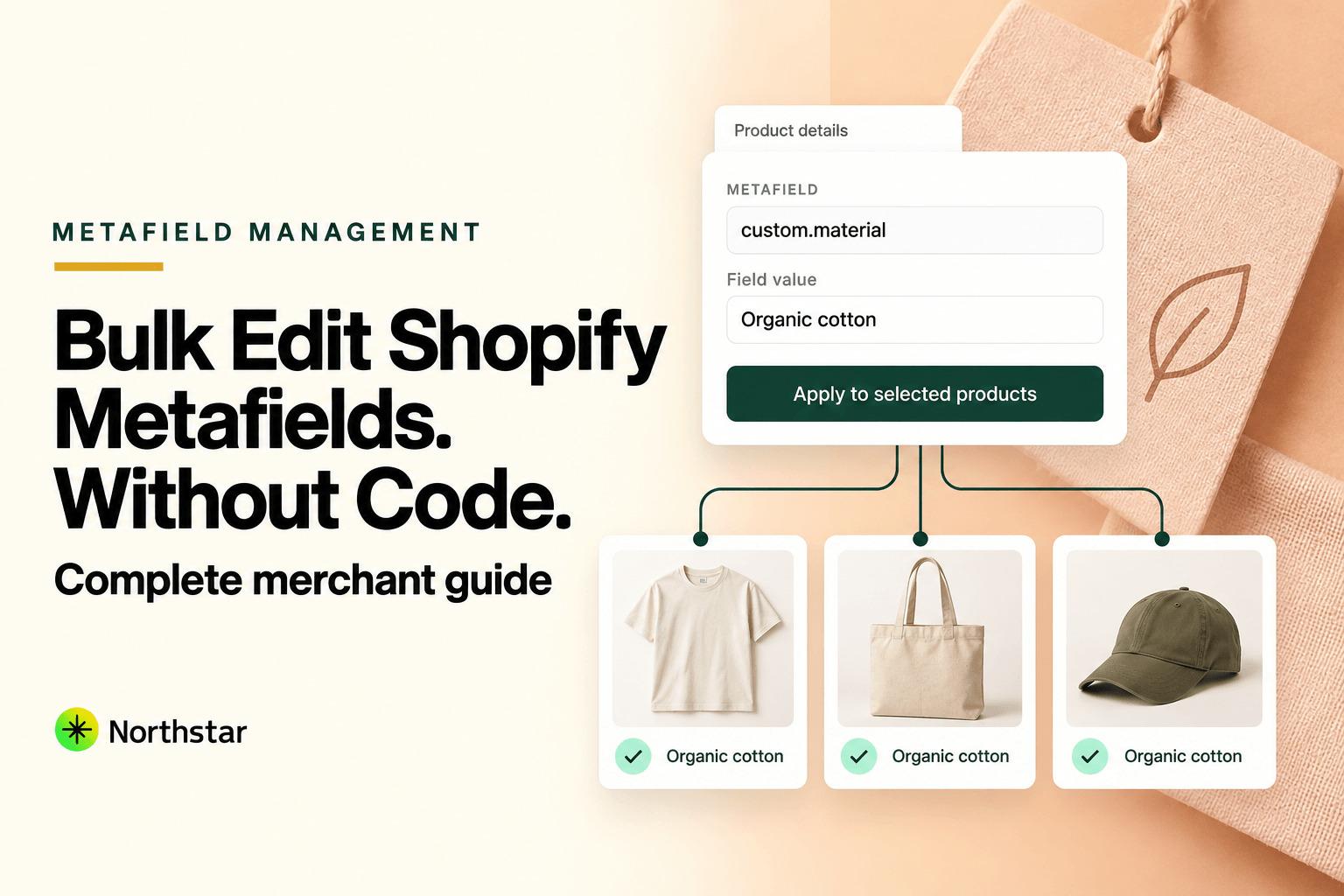
Since the introduction of Shopify Online Store 2.0, metafields have become the backbone of modern Shopify store architecture. From size charts and care guides to technical specifications, ingredient lists, custom promotional badges, and B2B wholesale minimums, metafields allow merchants to display rich structured data without touching liquid theme code.
However, while creating metafield definitions is simple, populating and updating them across a sizable catalog is notoriously difficult. If you want to edit metafields in bulk on Shopify natively, you face an agonizingly slow process: either open every single product in your admin panel one by one, or construct obscure URL query strings in Shopify's default bulk editor that lag and crash on large datasets.
In this comprehensive tutorial, we will explore how to bulk update metafields in Shopify without code, understand how metafield namespaces and keys work, and show you how to add, find-and-replace, and clean up metafield values across thousands of products in minutes.
The Pain of Native Shopify Metafield Editing
Shopify has built powerful infrastructure for metafields, but its native editing tools were built for single-product adjustments, not catalog-wide management.
Here is why merchants struggle with native metafield updates:
-
The URL Query Parameter "Hack": To view metafields in Shopify's built-in bulk editor, merchants are forced to construct custom browser URLs with raw query strings (for example:
/admin/bulk?resource_name=Product&edit=metafields.custom.care_instructions:string). If you mistype a single character or namespace, the page loads blank or throws an error. - 50-Product Pagination Bottlenecks: Even when the native bulk editor loads, it limits you to 50 products per page. If your store has 2,500 products, you must manually edit and save across 50 separate pages, which takes hours and invites fatigue errors.
- Zero Find-and-Replace or Templating: Need to change a supplier name from "Acme Co" to "Acme Global" across all product specifications? Shopify's native tool has no find-and-replace for metafields. You have to retype or paste the string into every individual cell.
- Browser Crashes and Unsaved Changes: When editing large tables in the browser, a single accidental tab refresh or network hiccup can discard hours of unsaved metafield inputs.
Metafield Definition Tip: Shopify categorizes metafields into Pinned and Unpinned definitions. Pinning a definition makes it visible at the bottom of the product page in the admin, but it still does not enable automated bulk updates across entire collections.
Understanding Shopify Metafield Architecture
Before running bulk updates, it helps to understand the three components that define every Shopify metafield:
-
Namespace: A container that groups related fields (e.g.,
custom,specifications,marketing, orinventory_rules). -
Key: The unique identifier of the field within that namespace (e.g.,
material,wash_care,badge_text, orwarranty_years). -
Data Type: The schema format enforcing what data can be stored. Common Shopify types include:
- Single line text (e.g., "100% Organic Cotton")
- Multi-line text (e.g., formatted care instructions)
- Integer / Decimal (e.g., thread count or weight)
- Boolean (true/false flags for badges like "Staff Pick" or "Pre-Order")
- URL / File reference (e.g., links to downloadable PDF user manuals)
- JSON / List (e.g., arrays of compatible model numbers)
The Code-Free Solution: Visual Bulk Metafield Management
Instead of hacking URL strings or risking spreadsheet import errors, merchants use Shopify Bulk Product Editor by NorthStar. With dedicated Shopify metafield management, you can select your metafield definitions visually, filter products by any catalog attribute, apply rules, preview the exact diff, and apply updates in the background.
Capabilities of In-App Metafield Bulk Editing
- Bulk Populate: Assign values to all empty metafields across a collection or tag group.
- Find & Replace in Metafields: Search and replace text patterns across single-line and multi-line metafields.
- Dynamic Token Templating: Generate metafields using product attributes (e.g.,
Made for {{ title }} | Vendor: {{ vendor }}). - Bulk Clear / Delete: Remove obsolete metafield values across targeted segments in one pass.
- Variant Metafields: Bulk edit metafields attached to individual variants, not just parent products.
Step-by-Step Tutorial: How to Bulk Update Metafields in Shopify
Follow this step-by-step bulk metafield editor tutorial for Shopify to populate or update metafields across your catalog without code:
Step 1: Filter the Products You Want to Update
Open NorthStar Bulk Product Editor inside your Shopify admin. Use filters to narrow down your product scope:
- By Collection: e.g., all products in your Summer Linen 2026 collection.
- By Product Type or Vendor: e.g., all items where Product Type is Outerwear.
- By Tag: e.g., products tagged with
needs-care-guide. - By Existing Metafield Status: Target products where a specific metafield is currently empty or contains a particular substring.
Step 2: Select the Metafield Namespace and Key
In the bulk editor configuration, choose Metafields as the attribute. NorthStar automatically reads all registered metafield definitions from your Shopify store schema:
- Select your target scope: Product Metafield or Variant Metafield.
- Choose the namespace and key from the dropdown (e.g.,
custom.care_instructionsorspecifications.dimensions). - The app displays the expected data type to prevent validation rejections.
Step 3: Define the Operation and Value
Select your operational mode based on the catalog task:
-
Set Static Value: Enter a fixed string, boolean, or number. For instance, setting a boolean metafield
marketing.eco_friendlytotruefor all sustainable products. -
Dynamic Template Injection: Combine plain text with dynamic catalog tokens like
{{ vendor }},{{ title }}, or{{ sku }}. - Find and Replace: Use find and replace inside existing metafield values to fix brand names, typos, or outdated terminology.
- Clear Metafield: Delete the value from all matching products without deleting the underlying schema definition.
Example Rule Configuration:
{
  "target": {
    "collection": "Apparel > Knitwear",
    "metafield_status": "custom.care_instructions is empty"
  },
  "action": "set_metafield",
  "namespace": "custom",
  "key": "care_instructions",
  "type": "multi_line_text_field",
  "value": "Hand wash cold. Lay flat to dry. Do not tumble dry or bleach. Warm iron if needed."
}
Step 4: Verify with the Live Diff Preview
Never guess what will happen to your storefront data. Click Preview Changes to see an exact comparison table of current vs. proposed values:
- Verify that only the intended collection products are listed.
- Inspect multi-line formatting and line breaks to ensure clean display on theme accordions.
- Ensure that products with existing custom values are either preserved or overwritten according to your rule settings.
| Product Title & SKU | Metafield Target | Current Value | Proposed New Value (Preview) | Action |
|---|---|---|---|---|
Merino Wool CrewneckSKU: KNIT-MER-01 |
custom.care_instructions |
(empty) | Hand wash cold. Lay flat to dry... | Add |
Cable Knit CardiganSKU: KNIT-CBL-02 |
custom.care_instructions |
Dry clean only |
Hand wash cold. Lay flat to dry... | Update |
Cashmere RollneckSKU: KNIT-CSH-03 |
custom.care_instructions |
(empty) | Hand wash cold. Lay flat to dry... | Add |
Step 5: Execute Safely in the Background with 1-Click Rollback
Click Apply Update. NorthStar dispatches the changes via Shopify's GraphQL Admin API with smart rate-limit throttling. Your updates process seamlessly in the background without tying up your workstation.
Every completed job is recorded in your activity log with an automatic pre-update snapshot. If you ever need to reverse the changes, simply open the job and click Rollback to restore previous metafield values instantly.
4 Real-World Merchant Scenarios for Bulk Metafield Updates
1. Setting Up Accordion Spec Tabs for New Collections
When launching 200 new kitchen cookware items, your theme may require custom.material, custom.dishwasher_safe, and custom.oven_temp_max to populate product page tabs. Bulk populating these three fields across the collection takes under two minutes.
2. Launching Dynamic Promotional Badges
Create a boolean metafield named marketing.flash_sale_badge. Filter all products on clearance and set the value to true. Your theme automatically renders an animated "FLASH SALE" badge over the product cards. When the sale ends, bulk set the boolean to false.
3. Populating Google Shopping Metafields
Google Merchant Center requires structured attributes like google.gender, google.age_group, and google.condition. Instead of filling out these fields one by one in Google sales channel feeds, bulk assign them across relevant product types directly inside Shopify.
4. Bulk Updating Variant Metafields for Specific Sizes
If your footwear products have variant-specific measurements (like Insole Length (cm) for sizes 7 through 13), use NorthStar's variant filters to target only variants where Option 1 = "Size 10" and assign the exact measurement in bulk.
Also selling on BigCommerce? See our companion tutorial on how to bulk edit BigCommerce custom fields without CSV for multi-platform catalog mastery.
Frequently Asked Questions: Bulk Shopify Metafield Editing
Can I bulk edit metafields that are not pinned in Shopify Admin?
Yes. Pinning only controls visibility inside the default Shopify single-product admin page. NorthStar Bulk Product Editor can access, filter, and edit all active metafield definitions across your store, regardless of whether they are pinned.
Can I bulk update metafields on product variants as well as products?
Yes. Shopify supports metafields at both the Product level and the Variant level. With NorthStar, you can filter specifically for variants and update variant metafields (such as specific dimensions, barcodes, or custom variant specs).
What happens if my input doesn't match the metafield type?
Shopify strictly validates metafield types. If you try to write text into a number or boolean metafield, Shopify's API will reject the change. NorthStar validates your input against the target definition before sending the request, preventing failed operations.
Can I use HTML inside multi-line text metafields?
If your definition type is Multi-line text, it will store line breaks and plain text. If you want to render HTML markup (such as bullet points, links, and bold text) in your storefront theme, create a Rich text or HTML metafield definition in Shopify.
Can I undo a bulk metafield change?
Yes. NorthStar creates an audit snapshot before every bulk job. If you make a mistake or need to restore previous values, you can trigger a 1-click rollback from your task history.
Does bulk updating metafields affect storefront loading speed?
No. Metafields are stored directly in Shopify's high-speed core database and rendered statically or cached via Liquid and Storefront API. Populating metafields does not add client-side JavaScript or slow down page load times.
Unlock the full potential of Shopify 2.0 without touching a line of code or wrestling with browser URLs. Explore NorthStar's Shopify metafield management tools and streamline your catalog operations today.