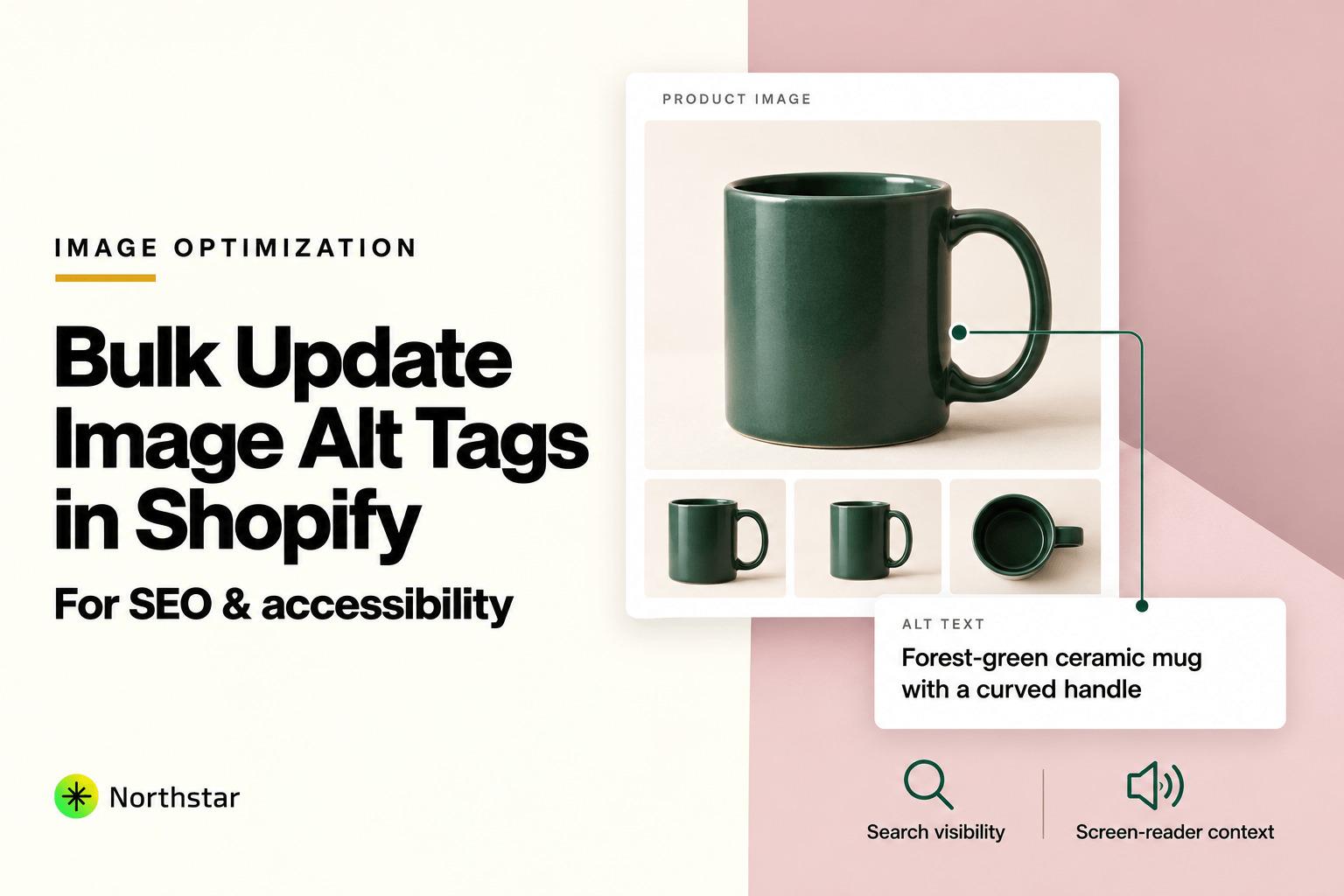
Product images are often the primary factor driving ecommerce conversions. But while merchants spend substantial resources on high-resolution photography, product staging, and 3D models, one critical element is almost universally neglected: image alt text (alternative text).
Image alt text serves two mission-critical roles in modern ecommerce:
- Organic Search Rankings & Google Images: Search engine crawlers cannot "see" image pixels. Alt text tells Google exactly what product is pictured, helping your catalog rank in high-intent Google Image Search carousels and organic shopping packs.
- Web Accessibility (ADA / WCAG Compliance): Screen readers speak alt text aloud to visually impaired shoppers. Missing or generic alt tags exclude potential buyers and expose US and European merchants to accessibility compliance lawsuits.
Yet, if you try to bulk edit image alt text in Shopify natively, you encounter an operational nightmare. A store with 500 products averaging 6 photos each has 3,000 images. Shopify provides no native bulk tool for image alt text. You have to open product 1, click image 1, click "Edit alt text", type a description, save, click image 2, and repeat that process thousands of times.
In this step-by-step tutorial, we will show you how to bulk edit image alt text in Shopify using intelligent dynamic templates, how to avoid SEO keyword stuffing penalties, and how to update thousands of image alt tags in minutes without opening a single spreadsheet.
Why the Native Shopify Workflow Doesn't Scale
Most growing stores have thousands of images with completely blank alt text or generic filenames like IMG_2049.JPG or product-photo-1.png.
Here is why fixing this natively in Shopify is unworkable:
- Click Fatigue: To edit alt text natively, you must navigate to Shopify Admin > Products > Select Product > Media Gallery > Click Image Thumbnail > Add Alt Text > Type Text > Save > Close Modal. Doing this for 3,000 images requires over 20,000 manual clicks and weeks of monotonous labor.
-
CSV Export Friction: Shopify's standard product CSV export includes an
Image Alt Textcolumn, but only for the first image associated with that row. Editing multiple gallery images across color variants via CSV frequently breaks image order or duplicates files on re-import. - No Dynamic Templating: When a product title or brand name changes, Shopify does not update image alt text. If you rebrand from "Zenith Audio" to "Zenith Pro", every existing image alt tag retains the outdated brand name until manually retyped.
SEO Warning: Beware Keyword Stuffing: Some low-quality SEO apps spam identical keyword strings across every image (e.g., "cheap shoes buy shoes best shoes shoes online"). Google's Helpful Content systems detect this pattern and may penalize your store for keyword stuffing. Alt text should be descriptive, natural, and helpful for human accessibility.
The Modern Alternative: Template-Driven In-App Bulk Image SEO
Instead of manual clicking or risky CSV imports, merchants use NorthStar Bulk Product Editor for Shopify. With our dedicated Shopify bulk SEO editor, you can construct dynamic alt text formulas that combine product titles, vendor names, variant colors, and image positions into natural, high-ranking descriptions.
Anatomy of a High-Converting Image Alt Tag
A high-performing ecommerce alt tag follows a clean, structured formula:
[Brand Name] [Product Title] in [Color / Option] - [Image View / Detail]
Example: "Apex Audio Studio Wireless Headphones in Matte Black - Angled Side View with Foldable Earcups"
Step-by-Step Tutorial: How to Bulk Edit Image Alt Text in Shopify
Follow this walkthrough to update your entire store's image alt tags in under five minutes:
Step 1: Filter Target Products and Audit Existing Alt Text
Launch NorthStar Bulk Product Editor from your Shopify admin. Use the smart filter bar to select the products you wish to optimize:
- By Collection: e.g., your high-margin Footwear or Handbags collection.
- By Alt Text Status: Filter specifically for products where Image Alt Text is empty or Image Alt Text matches filename.
- By Product Type or Vendor: Group similar items together so you can apply category-specific descriptors.
Step 2: Choose the Bulk Image Alt Text Action
Under the SEO operations menu, select Product Images > Update Alt Text. NorthStar provides flexible operational modes:
- Update All Images: Re-generates alt text across all images (primary hero + gallery images).
- Update Only Blank Alt Text: Fills missing alt text while preserving images where custom manual descriptions were previously written.
- Find and Replace in Alt Text: Replaces specific words or obsolete brand names across all image tags without wiping out surrounding text.
Step 3: Build Your Dynamic Alt Text Template
Use dynamic catalog tokens to automatically generate unique, descriptive alt tags for every photo. Tokens automatically interpolate parent product and variant attributes:
{{ product.title }}: Injects the product title.{{ product.vendor }}: Injects the brand / manufacturer.{{ product.type }}: Injects the category classification.{{ image.position }}: Injects the image number (e.g., photo 1, photo 2) so gallery images remain distinct.{{ variant.option1 }}: Injects variant-specific options like color or finish.
Example Template Configuration:
Primary Image Template:
{{ product.vendor }} {{ product.title }} - Front View

Gallery Images Template (Image 2+):
{{ product.vendor }} {{ product.title }} - Detailed View {{ image.position }}
Step 4: Audit Proposed Alt Text in the Live Preview
Click Preview Changes. NorthStar renders a side-by-side gallery view displaying:
- Visual thumbnail of each image.
- Current Alt Text (showing blank or generic strings).
- Proposed New Alt Text generated by your dynamic template.
- Character count indicator (ideal SEO length is between 50 and 125 characters).
| Image Thumbnail | Product Title & SKU | Position | Current Alt Text | New Alt Text (Live Preview) |
|---|---|---|---|---|
| [Thumbnail 1] | Nordic Ceramic Table LampSKU: LMP-NRC-01 |
Image #1 | (empty) | Nordic Living Nordic Ceramic Table Lamp - Front View |
| [Thumbnail 2] | Nordic Ceramic Table LampSKU: LMP-NRC-01 |
Image #2 | IMG_9921.jpg |
Nordic Living Nordic Ceramic Table Lamp - Detailed View 2 |
| [Thumbnail 3] | Nordic Ceramic Table LampSKU: LMP-NRC-01 |
Image #3 | IMG_9922.jpg |
Nordic Living Nordic Ceramic Table Lamp - Detailed View 3 |
Step 5: Apply Updates via Background API with 1-Click Rollback
Click Apply Bulk Update. NorthStar dispatches the alt text updates directly to Shopify's CDN and product media database using Shopify's official GraphQL Admin API.
Your updates process safely in the background without affecting store performance or interrupting shoppers. A complete audit log records all modified images, and you can trigger a Rollback at any time to restore your original alt tags.
3 Powerful Complementary SEO Workflows
While updating image alt tags is a massive win for image search, a comprehensive catalog SEO strategy also includes:
- Updating Product Descriptions in Bulk: Learn how to update product descriptions to insert target keywords, shipping FAQs, and warranty policies across hundreds of products.
- Standardizing Product Titles: Use our guide on how to bulk update product titles to maintain uniform naming conventions across vendor feeds.
- Automating Meta Titles and Meta Descriptions: With the Shopify bulk SEO editor, you can generate optimized meta tags using liquid-style variables to maximize organic search CTR.
Frequently Asked Questions: Bulk Shopify Image Alt Text
Does updating image alt text change my image URL or CDN location?
No. Image alt text is an HTML metadata attribute attached to the media record in Shopify's database. Updating alt text does not change your image filename, file path, or Shopify CDN URL. All existing external links, blog embeds, and Pinterest pins remain completely intact.
How long does it take for Google to index new image alt text?
Google typically re-crawls ecommerce product pages within several days to a few weeks, depending on your store's crawl budget and sitemap ping frequency. Once re-crawled, Google Images indexes the updated alt text.
Should decorative images (like icons or dividers) have alt text?
Purely decorative theme images (such as background textures or decorative dividers) should ideally have empty alt text (alt="") so screen readers skip them. Product photography, however, should always have meaningful, descriptive alt text.
Can I bulk update image alt text for variant-specific images?
Yes. With NorthStar, when an image is associated with a specific color variant, our template engine can automatically pull in the variant option name (e.g., "in Burgundy Velvet") to provide ultra-specific alt text.
What is the optimal character length for image alt text?
Aim for 50 to 125 characters. Screen readers typically cut off or pause reading after 125 characters, and search engines prefer concise, direct descriptions over lengthy keyword-stuffed paragraphs.
Can I undo a bulk image alt text update if I want to revise my template?
Yes. NorthStar maintains a full point-in-time snapshot of your previous alt tags. You can revert any job with one click or simply refine your template and run an update again.
Stop losing organic traffic to competitors with fully optimized media. Elevate your Google Image rankings and ensure complete accessibility compliance with NorthStar's Shopify bulk SEO and image editor today.