Every seasonal promotion, holiday weekend, and inventory clearance creates an operational dilemma for ecommerce managers: "Can you set up automatic markdown and discount schedules by product category?"
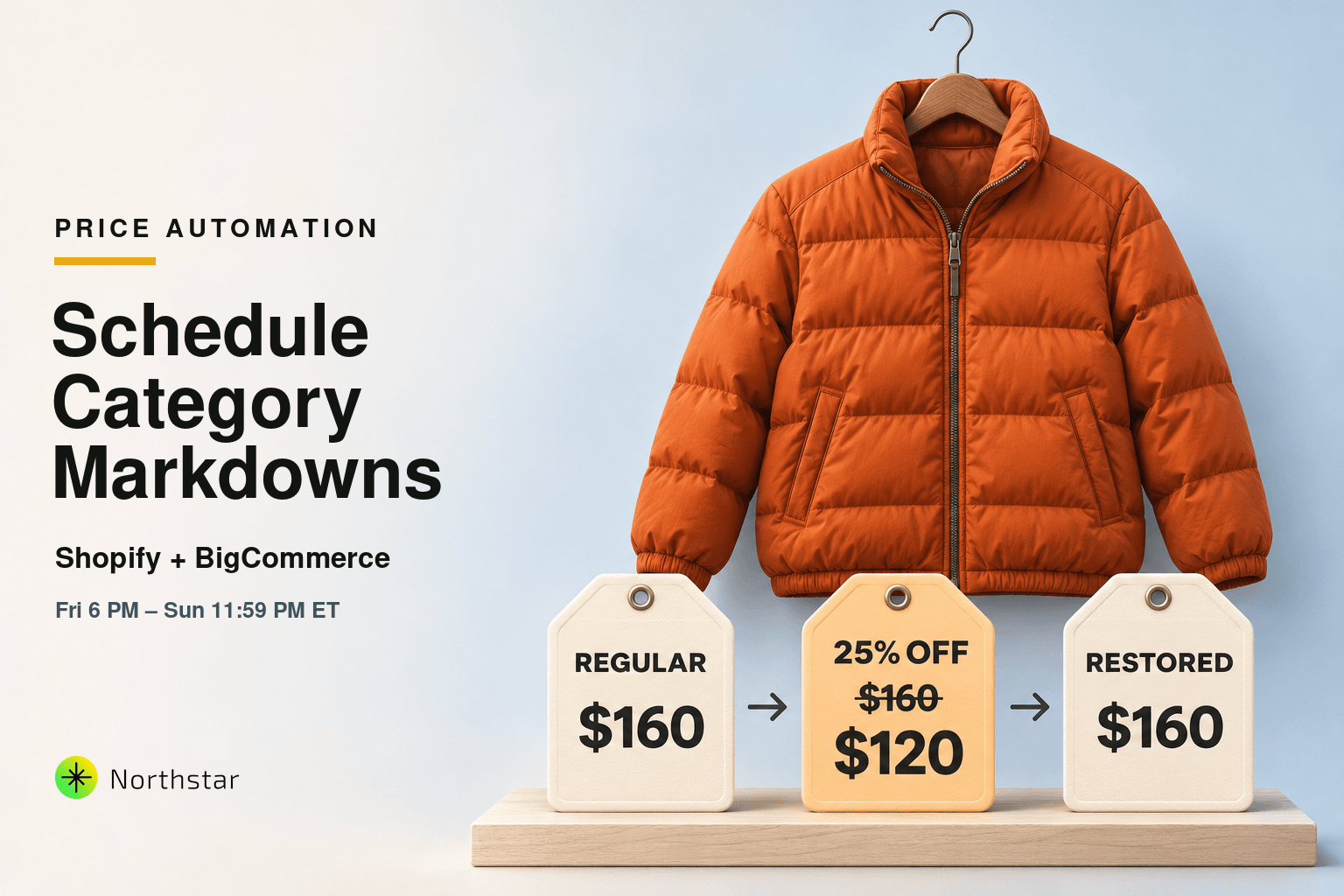
Picture this familiar scenario: Your marketing calendar calls for a 25% off flash sale on all Outerwear starting Friday at 6:00 PM and ending Sunday at 11:59 PM. You want shoppers browsing your collection pages to see bold visual strikethrough pricing ($160.00 $120.00) and high-visibility "SALE" badges. But when Friday evening arrives, someone on your team has to stay late or set a phone alarm for midnight Sunday just to manually revert hundreds of product prices back to full MSRP.
If someone gets stuck in traffic, types a decimal error, or forgets the midnight rollback, your store risks selling high-value catalog items below cost on Monday morning.
In this definitive guide, we will examine why traditional discount codes fail during high-impact promotions, break down the native platform limitations of Shopify and BigCommerce, and walk step-by-step through configuring automated category markdowns, strikethrough pricing rules, and hands-off scheduled price rollbacks without spreadsheets or expensive enterprise plans.
Discount Codes vs. Category Markdowns: Why Strikethrough Pricing Converts 24% Better
When merchants ask platform support how to run a category sale, the standard recommendation is to create an Automatic Discount Code applied to specific collections. While convenient to set up, discount codes suffer from three critical conversion handicaps:
-
No Visual Strikethrough on Collection Grids: Discount codes calculate reductions only in the slide-out cart or at checkout. When shoppers browse your category pages, every product displays its regular full retail price. E-commerce eye-tracking studies confirm that prominent strikethrough pricing (
$100$75) increases category click-through rates by 18% to 24% compared to checkout-only discounts. -
Missing Theme "SALE" Badges and Sorting: Modern Shopify Liquid themes and BigCommerce Stencil storefronts trigger visual "SALE" badges and collection sorting rules (like "Sort by Biggest Discount") based strictly on the product's
compare_at_pricefield. Discount codes leave this field untouched. - Ad Feed and Google Shopping Mismatches: Google Merchant Center, Meta Catalog Ads, and TikTok Shop sync with your live product database price. If your product price does not reflect the discount on the product page itself, your dynamic retargeting ads will advertise full price, increasing ad friction and customer acquisition cost (CAC).
To maximize promotional revenue, you need actual field-level price updates: setting the product price to the discounted rate, populating the compare_at_price with the original retail value, and restoring both fields cleanly when the sale expires.
Native Platform Limitations: Why Stores Struggle Without an App
Why isn't category-level price scheduling standard in ecommerce platforms? Here is the reality across Shopify and BigCommerce:
| Platform / Tool | Category-Level Filtering | Scheduled Start / End | Visual Strikethrough | Automated Rollback | Estimated Cost |
|---|---|---|---|---|---|
| Shopify Basic / Advanced (Native) | Yes (Manual) | No | Manual only | No | Included in plan |
| Shopify Plus (Launchpad) | Yes | Yes | Yes | Yes | $2,000+ / month |
| BigCommerce Standard (Native) | Yes (CSV export) | No | Manual CSV | No | Included in plan |
| NorthStar Bulk Product Editor | Yes (Dynamic rule) | Yes (Custom schedule) | Automatic formula | Yes (Guaranteed 1-click) | Free to start |
Unless you are an enterprise merchant on Shopify Plus using Launchpad, running scheduled promotional pricing natively requires either risky CSV spreadsheet imports or tedious manual entry.
How to Automate Category Markdown Schedules in Shopify (Step-by-Step)
Using NorthStar Shopify Bulk Product Editor, you can configure an automated markdown schedule for any collection or product category in less than four minutes.
Step 1: Define Your Target Category or Collection Filter
Navigate to the rule builder in NorthStar and specify the collection you want to discount. You can filter by:
- Smart or Automated Collections: Target collections like "Winter Apparel", "Footwear", or "Home Decor".
- Product Type and Vendor: Combine collection filters with vendor names (e.g., Collection is "Jackets" AND Vendor is "Patagonia").
- Tag Refinements: Target specific sub-segments (e.g., Collection is "Sneakers" AND Tag contains "Men").
Step 2: Configure Strikethrough Pricing Logic with Safety Rules
Next, configure the exact numerical price formula:
- Set Compare-at Price First: Ensure the customer sees the strikethrough. Choose "Copy current Price to Compare-at Price" (only if Compare-at Price is currently empty, to avoid overwriting pre-existing MSRP).
- Apply Percentage or Fixed Markdown: Choose "Decrease Price by 25%" or "Decrease Price by $20".
- Apply Psychological Price Rounding: Keep pricing clean and trustworthy by applying a rounding rule, such as "Round to nearest .99" (e.g., $74.23 becomes $74.99).
- Inject Promotional Tags: Add action "Add Tag: Flash-Sale-25" so your theme can display custom promotional badges or collection callouts.
Step 3: Schedule the Sale Window and Automatic Price Rollback
Rather than running the job immediately, switch execution to Scheduled Run:
- Start Time: Set date and exact hour (e.g., Friday, November 27, 2026, at 18:00 EST).
- Reversion Time: Check "Automatically Revert Price Changes" and specify the end time (e.g., Sunday, November 29, 2026, at 23:59 EST).
When the clock strikes 11:59 PM on Sunday, the background automation automatically clears the promotional compare-at prices, restores original product prices, removes the temporary "Flash-Sale-25" tag, and logs a full audit receipt in your job history.
How to Set Up Category Discount Schedules in BigCommerce
In BigCommerce, category management operates on hierarchical category trees. Managing promotions across parent categories and subcategories requires careful field handling:
1. Parent vs. Subcategory Scope
When applying discounts in BigCommerce Category Automation, you can choose whether the discount rule applies only to products explicitly assigned to the parent category, or cascades down to nested subcategories (e.g., Apparel > Men > Outerwear).
2. BigCommerce Price Field Hierarchy
BigCommerce supports multiple price fields: Price, Sale Price, Retail Price, and customer group Price Lists.
-
The Clean Method: Instead of modifying your base product
Price, you can schedule the rule to populate theSale Pricefield. When the schedule ends, the rule simply clears theSale Pricefield, instantly restoring storefront pricing without altering underlying catalog records. -
Preserving MAP (Minimum Advertised Price): Set rule safety conditions ensuring that
Calculated Sale Price > Cost Price * 1.25to safeguard minimum gross margin thresholds.
5 Critical Margin Guardrails Every Merchant Should Enable
Automating price changes across hundreds or thousands of SKUs is powerful, but automated mistakes can scale just as fast as automated successes. Always activate these operational safety checks:
1. Prevent Double-Discounting (Rule Stacking Protection)
What happens if an item in your "Outerwear" category is already on permanent clearance? Without safety checks, a 25% category markdown will slash an extra 25% off the already-discounted price.
The Fix: Add the condition: "Compare at Price is empty" OR "Tags do not contain 'Final Sale'". This isolates full-price products and protects your gross margin.
2. Low-Stock Exclusions
Why discount items that are already selling out organically? If you only have 3 units remaining of a hot-selling winter parka, discounting it gives away margin unnecessarily.
The Fix: Add condition: "Inventory Quantity is greater than 10". Products with under 10 units remain full price, preserving profit while liquidating deeper inventory.
3. Preview 100% of Matching Products Before Scheduling
Never execute a bulk price rule blindly. Always click Preview Matches to inspect a side-by-side table displaying the current price, new calculated price, compare-at price, and active tags for the first 50 matching products.
4. One-Click Snapshot Recovery
Even with previews, human mistakes happen (like accidentally typing 50% instead of 15%). Ensure your bulk tool generates an immutable state snapshot prior to execution. If needed, you can trigger a 1-click rollback via Shopify & BigCommerce Bulk Edit Undo to restore your previous state within seconds.
5. Sync with Ad Channels and Google Merchant Center
Because scheduled category markdowns update actual platform price and compare-at fields directly in the database, Google Merchant Center and Meta Product Catalogs will fetch the updated sale price during their routine feed fetches, ensuring your shopping ads display attractive "Sale" annotations without disapprovals.
Frequently Asked Questions
Can you set up automatic markdown and discount schedules by product category?
Yes. While native Shopify Basic/Advanced and BigCommerce lack automated category-level price scheduling, you can use NorthStar's Sale Price Scheduler to filter by collection or category, apply a percentage or numeric markdown with compare-at strikethrough prices, set start and end timestamps, and automatically revert prices when the sale window closes.
Why are scheduled category markdowns better than automatic discount codes?
Automatic discount codes only apply savings in the cart or checkout, leaving collection pages showing full regular prices. In contrast, category markdowns update the actual product price and compare-at price fields, generating visual strikethrough pricing (e.g., $100 $75) and theme "SALE" badges that increase click-through and conversion rates by up to 24%.
Do I need Shopify Plus or Launchpad to schedule category discounts?
No. Shopify reserves its native Launchpad tool for Shopify Plus merchants paying $2,000+ per month. Standard Shopify stores can achieve automated scheduled markdowns, category filtering, and guaranteed 1-click price rollbacks using NorthStar Shopify Bulk Editor on standard plans.
How do I prevent double-discounting on already discounted items?
When configuring your discount rule, add negative conditions such as "Compare at price is empty" or "Product Tag does not contain CLEARANCE". This ensures your category-wide markdown only targets regularly priced catalog items and protects gross profit margins.
What happens if my store experiences a price error or wrong percentage?
With NorthStar Bulk Product Editor, every scheduled run captures an automated state snapshot before executing updates. If a mistake occurs, you can trigger an instant 1-click rollback to restore original prices, tags, and compare-at fields across all affected products.
Ready to eliminate midnight alarms and launch stress-free promotional campaigns? Explore how NorthStar's Sale Price Scheduler and BigCommerce Price Automation give your team enterprise-grade promotional control without the enterprise price tag.