It is every ecommerce merchant's recurring nightmare: a team member imports a spreadsheet where an Excel formula turned all retail prices into $0.00; an intern runs a find-and-replace that accidentally wipes out 4,000 product descriptions; or a supplier feed import overwrites custom SEO titles with cryptic warehouse part numbers.
Your heart sinks, your phone starts ringing with customer support alerts, and you frantically search Google: "How to undo bulk edit in Shopify" or "Undo BigCommerce bulk update".
Here is the harsh reality: Neither native Shopify nor BigCommerce has an "Undo" button for bulk edits or CSV imports.
Once you click save in the native bulk editor or complete a CSV import, those changes are committed directly to your live production database. Neither platform's customer support team can restore your catalog back to how it looked fifteen minutes ago.
In this emergency recovery and prevention guide, we will walk you through what to do immediately if you just suffered a catalog disaster, how to extract recovery data from emergency sources, and how to use modern 1-click rollback systems in Shopify Bulk Product Editor and BigCommerce Bulk Product Editor so a mistake never endangers your business again.
Emergency Checklist: What to Do Immediately After a Catalog Mistake
If you just ran an accidental bulk update and your storefront catalog is broken, follow these triage steps immediately:
Immediate 4-Step Triage Protocol
- Freeze All Admin Activity: Tell your entire team to stop saving products, running imports, or using catalog apps. Additional edits only overwrite audit trails and make restoration harder.
- Audit the Damage Scope: Determine which specific attributes were corrupted (Prices, Titles, Descriptions, Inventory, Tags, Metafields/Custom Fields) and note the exact time the bad job executed.
- Prevent Financial Loss on Pricing Errors: If prices were accidentally slashed to zero or heavily discounted, temporarily pause your storefront or enable an emergency checkout password while restoring data to avoid selling inventory at a loss.
- Locate Recent Data Snapshots: Look for recovery data sources before trying to manually re-type values.
5 Unexpected Places to Find Emergency Backup Data
If you made the bulk edit using native CSV imports or the default admin editor without a dedicated bulk editor app, your data was not backed up automatically. However, you can often recover historical product data from these five secondary sources:
1. Recent Order Line Items
When a customer places an order, Shopify and BigCommerce store a static, immutable snapshot of the product title, SKU, variant options, and price as it existed at the exact moment of purchase. You can export recent orders to recover accurate pricing and SKU data for your top-selling products.
2. Google Merchant Center Feed Cache
If you run Google Shopping ads, Google Merchant Center regularly fetches and caches your complete product feed (including Titles, Descriptions, Prices, Brand, and GTIN barcodes). Log into Google Merchant Center, navigate to Products > All Products > Download Products. You can often download a pristine snapshot of your catalog from just 24 hours prior.
3. Supplier Feeds & Master Price Lists
If prices or descriptions were wiped out, retrieve the original wholesale price sheets or product data files sent by your distributors or manufacturers.
4. Search Engine Caches & The Wayback Machine
For wiped descriptions or custom landing page copy, search Google for your product URL and click the three vertical dots next to the search snippet to view Google's cached HTML version, or inspect archive.org (Wayback Machine) for historical copy.
5. Team Downloads Folder
Check the Downloads folder on every team member's computer. Someone may have exported a routine product CSV earlier in the week before making the update.
Browser Myth: Why "Back" or "Ctrl+Z" Doesn't Work: Hitting the browser Back button or pressing Undo only affects text currently sitting inside active browser form inputs. Once a request hits the Shopify or BigCommerce API, the database record is permanently altered.
The Modern Solution: 1-Click Rollback with NorthStar Bulk Product Editor
High-volume merchants running on Shopify and BigCommerce avoid disaster altogether by using NorthStar Bulk Product Editor. Every batch operation performed in NorthStar includes:
- Automatic Pre-Execution State Snapshots: Before modifying a single product, NorthStar records a granular snapshot of every targeted attribute across every matching SKU.
- Live Visual Diff Previews: You see an exact side-by-side comparison of old values versus new values before confirming any bulk job.
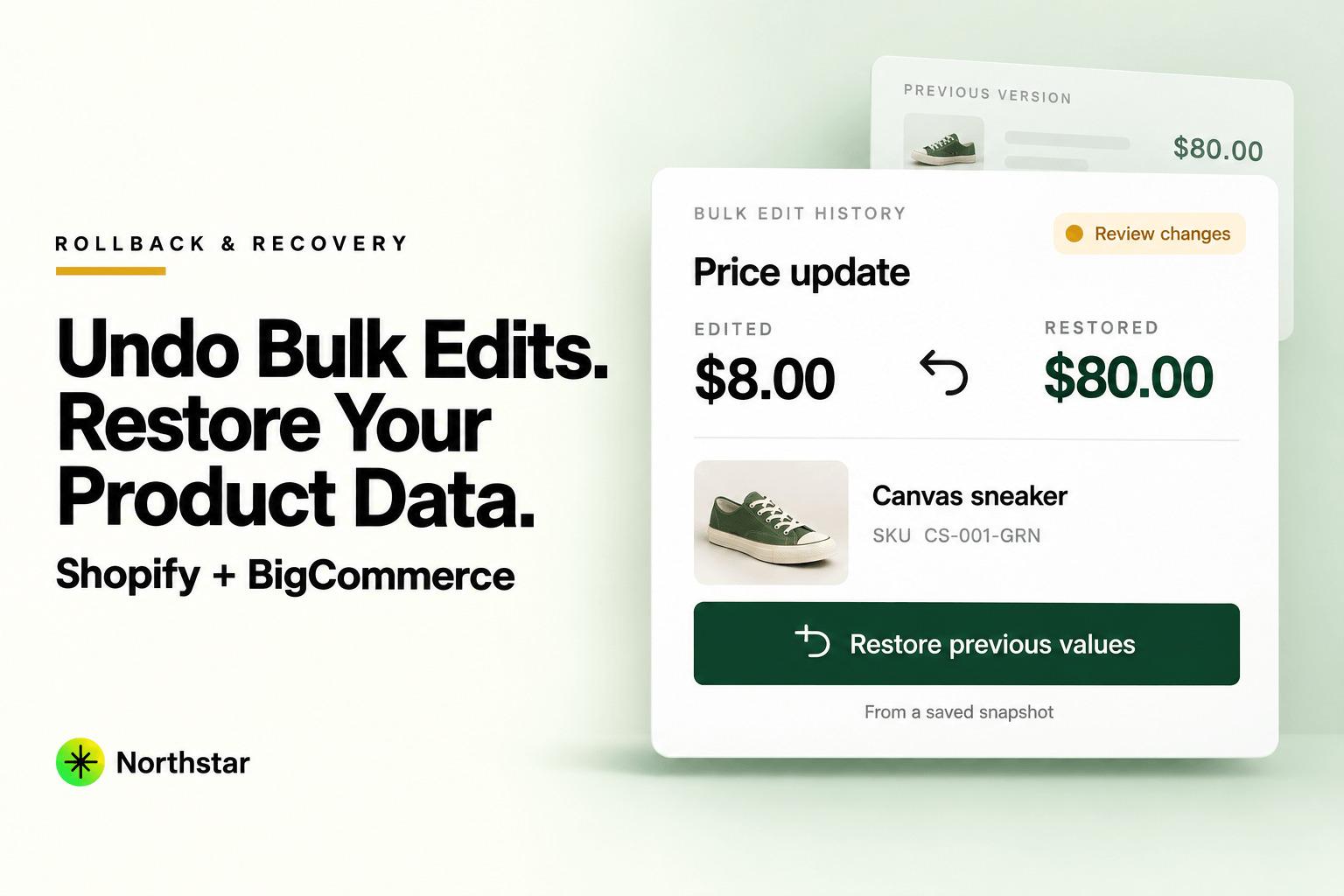
- 1-Click Instant Rollback: If a job ever produces unexpected results, simply click Rollback. NorthStar dispatches background API jobs to restore every product attribute to its exact pre-update state.
- Field-Specific Recovery: If you updated both tags and prices, you can choose to revert only the price changes while keeping your new tags intact.
| Scenario | Native Shopify / BigCommerce | NorthStar Bulk Product Editor |
|---|---|---|
| Accidental Bulk Price Error | Permanent database overwrite. Requires manual spreadsheet re-calculation and import. | 1-Click Instant Rollback from execution history. |
| Corrupted Variant SKUs / Barcodes | High risk of creating duplicate variants upon re-import. | Exact pre-job snapshot restoration at variant ID level. |
| Accidentally Deleted Tags or Custom Fields | No native recovery. Must manually re-enter tags product by product. | Automatic tag and custom field state restore in minutes. |
| Audit Log & Accountability | Limited activity feed showing only that a CSV import occurred. | Comprehensive log showing who ran the rule, what matched, and exact diffs. |
Step-by-Step Tutorial: How to Roll Back a Bulk Edit Using NorthStar
If you executed a batch operation using NorthStar, here is how to revert bulk product changes in under 60 seconds:
Step 1: Navigate to the Job History & Audit Log
Open Shopify Bulk Product Editor or BigCommerce Bulk Product Editor. Click on the History tab in the navigation menu. You will see a chronological log of all recent bulk updates, including:
- Task Name (e.g., "Black Friday 20% Price Markdown" or "Clearance Tag Clean Up").
- Timestamp of execution.
- User who initiated the job.
- Total number of affected products and variants.
- Status (Completed, Scheduled, or Reverted).
Step 2: Inspect the Pre-Execution Diff
Click on the completed task. NorthStar opens the comprehensive job audit drawer. Review the recorded changes to confirm this is the exact job that requires reversion. You will see the exact before-and-after values for every affected product.
Step 3: Trigger the 1-Click Rollback
Click the prominent red Rollback Changes button at the top right of the task drawer.
A confirmation modal asks you to verify the rollback scope:
- Complete Rollback: Restores all modified fields across all affected products.
- Selective Field Rollback: Reverts only specific fields (for example, undoing a price change while keeping a newly added tag).
Step 4: Monitor the Automatic Background Restoration
Confirm the rollback. NorthStar immediately dispatches restoration workers via Shopify's GraphQL API or BigCommerce's REST v3 Catalog API. The progress bar shows real-time restoration counts (e.g., "Restored 1,420 of 1,420 products").
Once complete, your store catalog is 100% restored to its previous state with zero residue or manual cleanup.
The Pre-Bulk Edit Checklist: How to Prevent Disasters in Advance
Before running any major catalog update on Shopify or BigCommerce, always execute this safety checklist:
-
Test on a 5-Product Tag Group First: Add a test tag like
test-batchto 5 representative products using the Shopify bulk tag editor. Run your bulk rule on that small group first, check the storefront, and verify that pricing, options, and descriptions look flawless. - Always Review the Live Diff Preview: Never skip the preview step. Look at the calculated prices, inspect text replacements, and confirm that option upcharges were not flattened.
- Check Price Rules Against Cost: If running a price markdown using our Shopify numeric price rules or Shopify scheduled price changes (or BigCommerce price automation), always verify that your minimum price floor protects your margins.
- Use Find-and-Replace with Strict Matching: When using find and replace text in bulk, enable whole-word matching so you don't accidentally replace substrings inside unrelated words (such as replacing "red" inside "ordered" or "shredded").
Frequently Asked Questions: Undoing Bulk Edits
Can Shopify Support or BigCommerce Support restore my products after a bad CSV import?
No. Platform support teams do not maintain point-in-time database backups for individual merchant catalogs. Once you save or import changes, they overwrite live database rows. Support representatives cannot roll back your store.
Does Shopify have a revision history for product descriptions?
Unlike blogging platforms like WordPress, Shopify does not maintain a built-in revision history for product descriptions or product fields. Once a description is updated or erased, the previous text is permanently lost unless you have an external backup or used an app like NorthStar.
What happens to orders placed while the catalog had incorrect prices?
Orders placed by customers during a pricing mistake are legally binding purchases in most jurisdictions unless your terms of service contain explicit pricing error clauses. Reverting prices via rollback immediately prevents further incorrect orders, but existing placed orders must be fulfilled or handled via customer service.
How long does NorthStar retain rollback snapshots?
NorthStar stores complete pre-execution snapshots in your history log, allowing you to review diffs and trigger rollbacks whenever you need them.
Can I roll back an edit if some products have since been modified?
Yes. NorthStar's rollback engine checks product state before writing. If a product was manually modified after the bulk job ran, NorthStar alerts you to the conflict and allows you to decide whether to overwrite or preserve recent changes.
Never let fear of catalog errors paralyze your merchandising team. Protect your store with automatic snapshots, visual diffs, and 1-click disaster recovery using NorthStar Bulk Product Editor for Shopify and NorthStar Bulk Product Editor for BigCommerce.