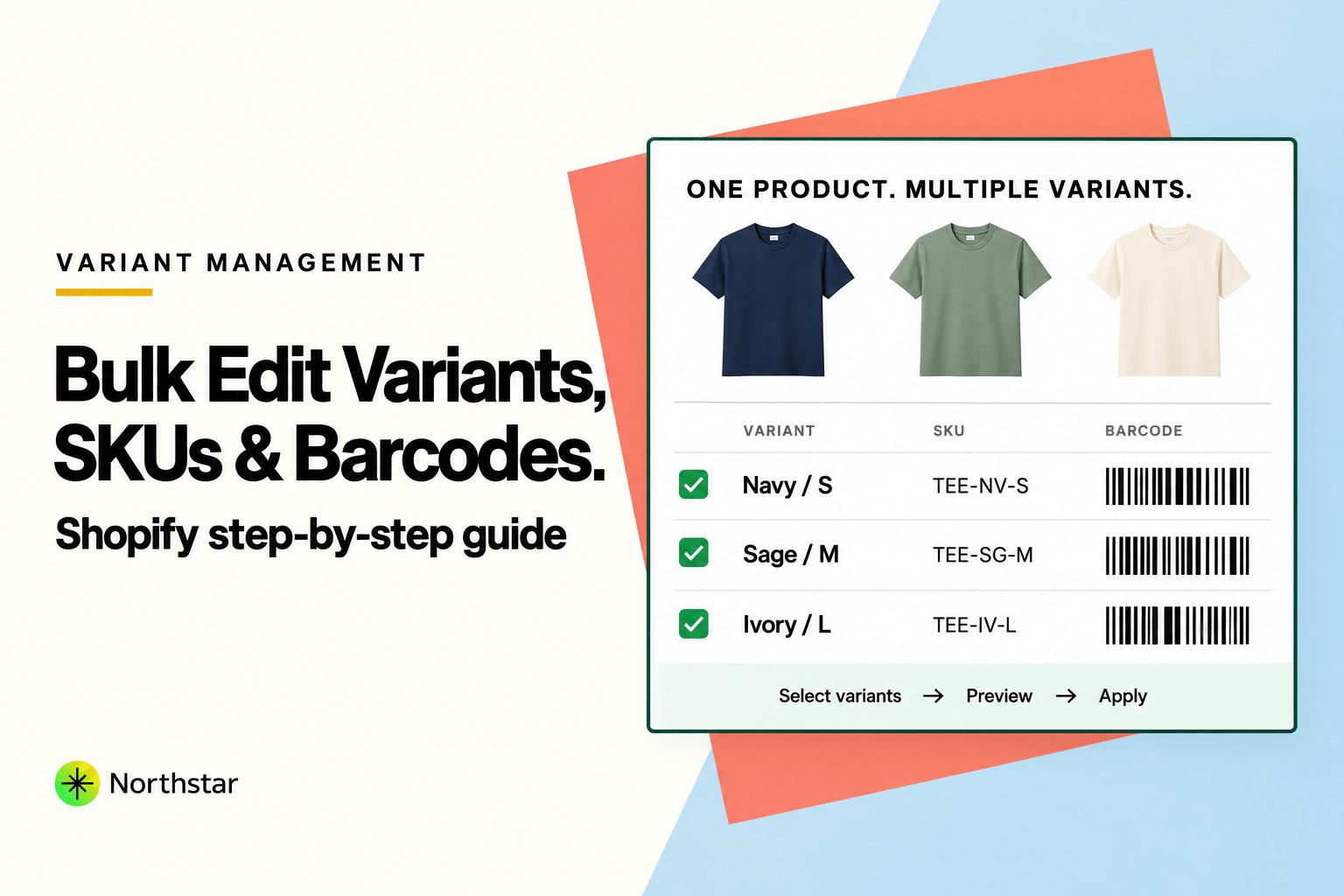
As an ecommerce catalog scales, product variations multiply exponentially. A store with 500 products can easily maintain 5,000 to 25,000 unique variant rows once you factor in size, color, material, and pack sizes. Every single one of those variants requires an accurate SKU for warehouse fulfillment, a valid barcode for POS scanners and Google Merchant Center, accurate weights for carrier shipping rates, and correct pricing.
Yet, managing variants in Shopify natively is one of the most tedious tasks in ecommerce administration. If you need to bulk edit variant prices in Shopify or reformat thousands of messy SKUs, Shopify's built-in tools force you to click into parent products individually or wrestle with complex CSV files where a single formatting mistake can create thousands of duplicate variants.
In this step-by-step merchant guide, we will cover how to bulk update SKUs in Shopify, how to adjust variant prices selectively (such as adding upcharges for larger sizes), and how to standardize barcodes across your entire store without CSV headaches.
Common Variant Data Disasters (and Why CSVs Fail)
When updating variant data via spreadsheet exports, merchants frequently encounter severe logistical bottlenecks:
-
Accidental Variant Duplication: In Shopify's CSV structure, variants belong to a parent product identified by the Handle column. If an Excel formula slightly alters an Option name (such as changing
SizetoSizeorLargetoL), Shopify does not update the existing variant. Instead, it creates a duplicate variant, cluttering your storefront and breaking inventory counts. -
Corrupted Barcodes and Scientific Notation: Excel automatically formats 12-digit UPCs and 13-digit EAN barcodes into scientific notation (e.g.,
012345678901becomes1.23457E+11). Importing this back into Shopify permanently overwrites your valid barcodes with corrupt strings, causing warehouse scanner failures. - 3PL and Inventory Desynchronization: Blank or malformed SKUs prevent third-party logistics providers (3PLs like ShipBob, Deliverr, or Amazon MCF) from syncing stock levels, leading to accidental overselling or delayed orders.
- Blanket Overwrites: In the native Shopify bulk editor, applying a bulk price change applies to all variants across selected products. If you only want to increase prices on extended sizes (e.g., XXL and 3XL) while keeping standard sizes at the base price, Shopify offers no automated filtering.
Google Merchant Center Warning: Google strictly enforces GTIN / barcode accuracy. Submitting duplicate, malformed, or missing barcodes in your variant feed can trigger account-wide product disapprovals in Google Shopping.
The Modern Alternative: Dedicated Bulk Variant & SKU Management
Instead of risking spreadsheet corruption, high-performing merchants use Shopify Bulk Product Editor by NorthStar. With dedicated Shopify bulk variant and SKU editing, you can filter at the granular variant level, run pattern-based SKU generators, apply arithmetic price adjustments, and audit every change with live side-by-side previews.
Core Variant Operations Supported in Bulk
- Selective Variant Pricing: Adjust prices or compare-at prices based on specific option values (e.g., +$4.00 for XXL sizes).
- Formula-Based SKU Generation: Build standardized SKUs using dynamic tokens:
[VENDOR]-[OPTION1]-[OPTION2]-[ID]. - Barcode / UPC / EAN Bulk Management: Clean up, replace, or assign barcodes without scientific notation corruption.
- Weight & Dimensions: Update physical package weights in bulk to ensure accurate carrier shipping calculations.
- Inventory Tracking Policies: Toggle "Track quantity" and "Continue selling when out of stock" across thousands of variants.
Step-by-Step Tutorial: How to Bulk Edit Variants, SKUs, and Barcodes
Follow this hands-on tutorial to update variant attributes across your Shopify store:
Step 1: Filter by Specific Variant Attributes
Launch NorthStar Bulk Product Editor from your Shopify admin. Unlike native tools that only filter whole products, NorthStar allows granular variant-level filtering:
- By Option Value: Target variants where Option 1 =
XXL, or Option 2 =Leather. - By SKU Criteria: Filter variants where SKU is blank, starts with an outdated prefix, or contains a specific supplier code.
- By Barcode Status: Filter for variants missing a barcode or containing invalid characters.
- By Parent Collection or Vendor: Limit updates to specific brands or product categories.
Step 2: Choose Your Variant Operation
Scenario A: Bulk Updating Variant Prices by Percentage or Amount
To add a price premium to specialized variants, select Variant Price. Choose your mathematical operation using our numeric price update rules:
- Increase by Fixed Amount: Add
$5.00to all heavy or extended-size variants. - Increase by Percentage: Add
10%to premium material options (e.g., silk or cashmere). - Adjust Compare-at Price: Maintain proportional discount badges across all variant tiers.
Scenario B: Standardizing SKUs with Pattern Formulas
If your SKUs are inconsistent, use the SKU Pattern Generator. Combine static text with dynamic product and variant tokens:
Example Pattern Formula:
Pattern: {{ vendor | upcase | truncate: 3 }}-{{ option1 | upcase }}-{{ option2 | upcase }}-{{ id | slice: -4, 4 }}
Result:  PAT-BLK-XL-4921
You can also use find and replace to replace outdated vendor abbreviations across all variant SKUs without altering other characters.
Scenario C: Bulk Updating Barcodes
To update barcodes, select Variant Barcode. You can find-and-replace incorrect prefix digits, clear corrupted scientific notation entries, or paste in batch lists mapped cleanly by variant ID.
Step 3: Audit Changes in the Variant Diff Preview
Click Preview Changes. NorthStar displays every affected variant row alongside its parent product title and image:
- Verify that only targeted variants (e.g., only XXL sizes) are marked for price updates.
- Check SKU pattern outputs to confirm spacing, hyphens, and capitalization look clean.
- Ensure that barcodes retain all 12 or 13 digits without scientific notation corruption.
| Parent Product | Variant Options | Current SKU / Price | Proposed New Value (Live Preview) | Action |
|---|---|---|---|---|
| Heavyweight Fleece Hoodie | Color: Heather Grey / Size: XXL |
OLD-HOD-01 | $65.00 |
HOD-GRY-XXL-8821 | $70.00 (+$5.00) | Update SKU & Price |
| Heavyweight Fleece Hoodie | Color: Heather Grey / Size: 3XL |
OLD-HOD-02 | $65.00 |
HOD-GRY-3XL-8822 | $70.00 (+$5.00) | Update SKU & Price |
| Heavyweight Fleece Hoodie | Color: Heather Grey / Size: Medium |
OLD-HOD-03 | $65.00 |
Skipped (Filter: Size != M) | Unchanged |
Step 4: Execute via Background Queues with 1-Click Rollback
Click Apply Bulk Update. The job processes via Shopify's GraphQL Admin API. Variant updates execute smoothly in the background without browser timeouts or API throttling errors.
If you ever need to revert the job, open the task in your execution log and click Rollback to restore your original SKUs, barcodes, or prices immediately.
3 Practical Real-World Variant Workflows
1. Adding Size Upcharges Across All Apparel Collections
Fabric and production costs for plus-size or tall garments are often higher. Instead of updating 400 apparel products manually, filter for variants where Option = "2XL" or "3XL" and apply a flat +$4.00 price increase across the entire store in one 60-second operation.
2. Re-Indexing SKUs After Warehouse Migration
When transitioning to a new fulfillment warehouse, your 3PL may require a standardized SKU format (such as adding a warehouse routing prefix like W1-). You can run a bulk prefix rule across all 15,000 variants without risking corrupting product titles or descriptions.
3. Bulk Enabling "Continue Selling When Out of Stock" for Made-to-Order Variants
If you sell personalized or made-to-order variants that never truly go out of stock, you can filter those specific option sets and bulk enable backorders while keeping standard off-the-shelf items strictly limited to on-hand inventory.
Frequently Asked Questions: Bulk Variant & SKU Editing
Can I bulk edit variant prices for specific collections only?
Yes. You can combine parent product filters (e.g., Collection = "Winter Jackets" and Vendor = "The North Face") with variant filters (e.g., Option: Size = "XXL") to apply highly targeted updates.
Will updating SKUs break my Shopify POS barcode scanning?
No. Shopify POS scans the Barcode field (UPC/EAN/ISBN), while the SKU field is used for inventory identification. If you need to update missing barcodes or resolve Google Merchant Center GTIN feed errors, check out our guide on how to bulk update barcodes and GTINs in Shopify.
Can I change variant option names (e.g., "Colour" to "Color") in bulk?
Yes. NorthStar supports bulk option restructuring, allowing you to standardize option titles and values across multiple product types without creating orphaned duplicate variants.
What happens if two variants end up with the same SKU?
Shopify permits duplicate SKUs, but most 3PL warehouse management systems require SKUs to be strictly unique. NorthStar's SKU generator lets you include variant IDs or increment counters to guarantee uniqueness across every SKU.
How do I revert a bulk variant price update?
Every bulk task run in NorthStar creates a pre-execution snapshot. Simply open the completed job log and click Rollback to restore previous variant prices, SKUs, or barcodes with a single click.
Take complete control of your variant catalog today. Explore NorthStar's Shopify bulk variant and SKU editor to streamline pricing, fulfillment codes, and barcode maintenance at scale.