Every growing ecommerce brand eventually faces a massive catalog update: a manufacturer changes its brand name, a supplier updates its warranty terms from 1 year to 3 years, a shipping policy changes before Black Friday, or a supplier feed introduces broken HTML links across thousands of products.
When faced with this challenge, store owners immediately ask: "How do I automate bulk content updates across thousands of products without manual editing?"
Editing products one by one through the Shopify admin takes days of mind-numbing effort. But relying on traditional CSV imports is equally perilous (see our breakdown on Shopify bulk editor vs CSV import): opening a CSV file containing rich HTML descriptions in external file editors frequently strips closing tags, scrambles quotation marks, and shatters your storefront layout.
In this step-by-step guide, we will explore why naive text replacement breaks product pages, review five essential ecommerce use cases, and show you exactly how to bulk find and replace text across thousands of Shopify product descriptions safely without touching a spreadsheet or risking broken storefront layouts.
The Hidden Trap: Why Naive Find-and-Replace Breaks Storefront Layouts
In Shopify, product descriptions are stored as raw HTML strings containing paragraph tags (<p>), unordered lists (<ul><li>), sizing tables, bold styling, and container divs.
When merchants use standard spreadsheet find-and-replace or basic scripting tools, three major errors routinely occur:
-
Broken HTML Tag Nesting: If your search phrase happens to match a snippet inside an HTML attribute (e.g., searching for "black" and unintentionally replacing
color: black;inside an inline style tag), your storefront CSS breaks, causing missing borders, unstyled text, or misaligned columns. -
Unclosed Tags and Layout Bleed: Replacing a phrase that includes an opening or closing HTML tag without replacing its counterpart leaves orphaned
<div>or<span>tags. When this happens, the product description container bleeds into the footer, breaking your entire website theme on affected pages. -
Quote Escaping and Character Encoding Corruption: CSV exports encode special characters (like quotes
", ampersands&, or em-dashes—). Re-importing a modified CSV often decodes these into ugly entity strings (like&quot;) visible to shoppers on your live storefront.
To update product copy safely, you need an HTML-aware bulk editor that isolates readable prose from markup tags, validates code syntax before saving, and provides a visual before-and-after diff.
5 Common Use Cases for Bulk Find-and-Replace in Shopify
1. Brand Name & Trademark Rebranding
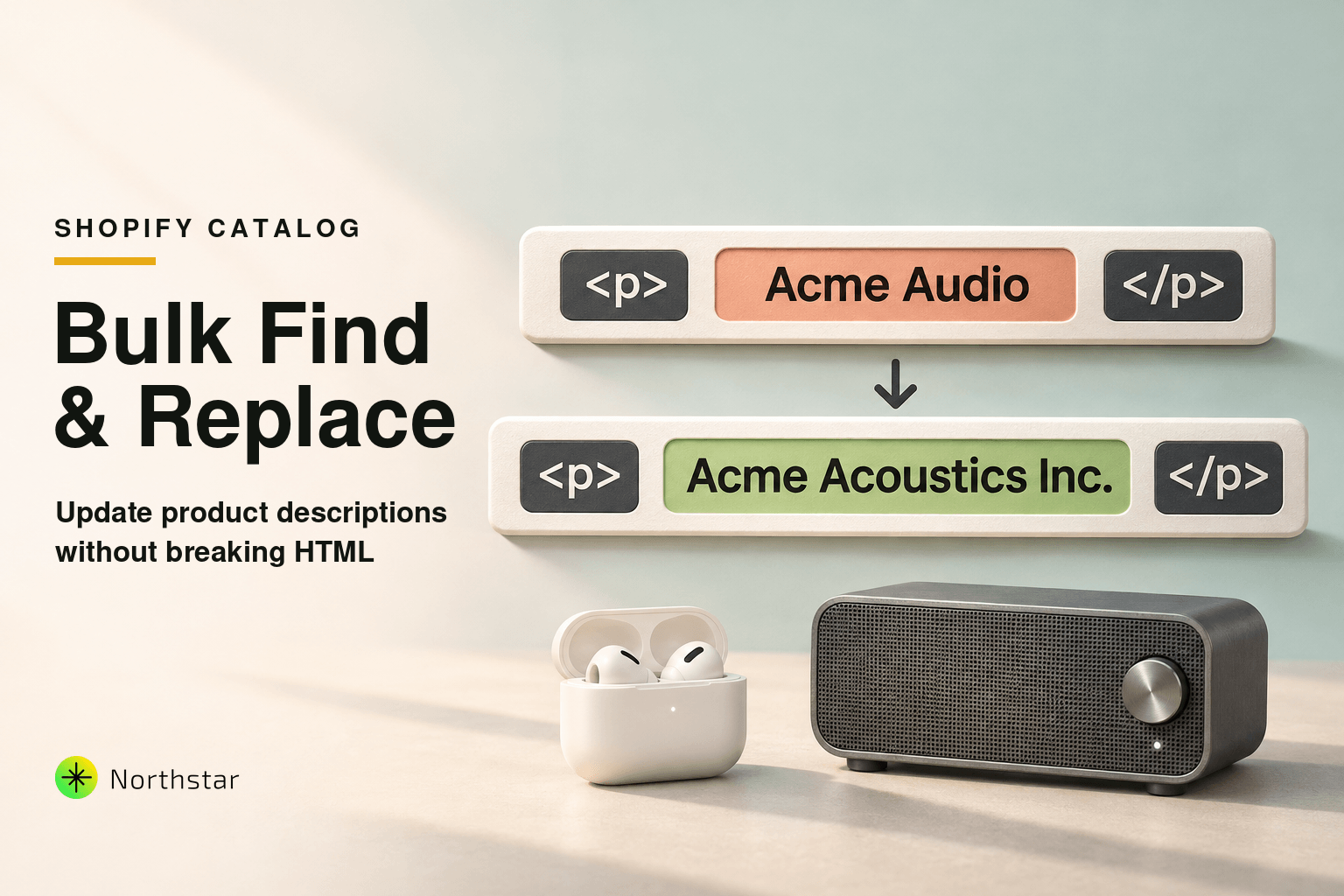
When a supplier rebrands or a licensing partnership updates its legal trade name (e.g., changing "Acme Audio" to "Acme Acoustics Inc."), you need to update that phrase across 2,000 product descriptions without re-writing product features.
2. Warranty & Guarantee Updates
If your store extends its returns policy from 30 days to 60 days, or a manufacturer increases warranty coverage, you can find the phrase 30-Day Money-Back Guarantee and replace it with 60-Day Satisfaction Guarantee across every product in that vendor category.
3. Seasonal Shipping Disclaimers
During Q4 and BFCM, merchants frequently add holiday cut-off notices (e.g., "Order by Dec 18 for guaranteed Christmas delivery"). Once December 19 arrives, having to manually delete that notice from 4,000 descriptions is an operational disaster. A bulk find-and-replace removes or updates the notice in under two minutes.
4. Removing Deprecated or Broken Links
Suppliers often link to external PDF user manuals or warranty registration sites that eventually return 404 errors. Google penalizes broken outbound links for SEO. Bulk find-and-replace allows you to strip the dead hyperlink while preserving the surrounding instructional text.
5. Cleaning Dirty Supplier HTML
Importing raw dropshipping or wholesale product feeds often brings unwanted inline font styles (like font-family: Arial; font-size: 11px;) that conflict with your modern Shopify theme. You can bulk target and remove these inline styling attributes to restore clean, theme-matched typography.
How to Safely Bulk Find and Replace Text in Shopify (Step-by-Step)
Using NorthStar Shopify Find & Replace, you can execute precise text updates across your catalog with guaranteed safety:
Step 1: Filter the Exact Scope of Products
Avoid running catalog-wide edits blindly. Narrow your update using precise conditions:
- By Collection: Restrict changes to "Summer Collection" or "Electronics".
- By Vendor: Target only products from a specific supplier.
- By Content Match: Add condition "Description contains [Search Term]" so the rule processes only products that actually contain the deprecated text.
Step 2: Configure Find and Replace Options
In the action panel, select Product Descriptions and configure your replacement:
- Find Text: Enter the exact phrase or HTML snippet you want to locate.
- Replace With: Enter the replacement text (or leave blank to delete the phrase).
- Match Case: Toggle case sensitivity to ensure exact phrase matching.
- HTML-Safe Mode: Keep this enabled so the engine ignores tags and replaces only visible rendered text.
Step 3: Inspect the Side-by-Side Live Diff Preview
Before making any live changes, click Preview Matches. NorthStar renders a side-by-side diff showing:
- The original product description with the matching phrase highlighted in red.
- The proposed product description with the new text highlighted in green.
- An HTML validation badge confirming that all opening and closing tags remain perfectly balanced.
Step 4: Execute in the Background with 1-Click Rollback
Click Run Update. NorthStar processes your catalog asynchronously via direct Shopify APIs. While the job runs:
- An automatic state snapshot is captured in your audit log.
- Your storefront continues operating without downtime or checkout interruptions.
- If you realize you made a typo, you can open your job history and click Undo Bulk Edit to restore every description to its exact pre-run state.
Pro Tip: Prepend and Append Workflows Without Overwriting
Sometimes you don't need to replace text—you simply need to add structured information. In NorthStar Description Automation, you can use:
- Prepend Action: Injects an alert banner, care guide note, or compatibility warning at the very top of descriptions across a category.
- Append Action: Injects standard shipping guidelines, materials breakdown, or brand story at the bottom of every description.
Frequently Asked Questions
Can you bulk find and replace text in Shopify product descriptions natively?
No. Shopify admin does not provide a native find-and-replace tool. You either have to open each product individually, export and edit an unwieldy CSV file, or use an automated app like NorthStar Bulk Product Editor to find and replace text across your catalog in seconds.
Will finding and replacing text break my product page layout or styling?
Traditional CSV imports and naive text editors frequently break product layouts by corrupting HTML tags (like unclosed <div> or <p> tags). NorthStar's find-and-replace engine is HTML-aware: it targets visible prose while preserving underlying structural code, classes, and responsive styles.
How do I automate bulk content updates across thousands of products without manual editing?
You can configure rule-based automation in NorthStar Bulk Product Editor. Filter products by collection, vendor, tag, or status, define find-and-replace strings (or prepend/append actions), preview before-and-after diffs on matching rows, and queue execution in the background.
Can I use regular expressions (Regex) to replace dynamic text patterns?
Yes. For advanced content standardization (such as standardizing phone numbers, dates, SKU codes, or varying shipping disclaimers), NorthStar supports regular expressions with capture groups for precise pattern replacement.
Can I undo a bulk description find-and-replace if I make a mistake?
Yes. Unlike Shopify CSV imports, NorthStar creates an automatic state snapshot before any bulk operation runs. If you accidentally replace the wrong phrase, you can revert all descriptions back to their original state with a single click via our rollback engine.
Stop wasting hours manually opening product tabs or stressing over broken HTML. Experience how NorthStar Shopify Find & Replace helps you update, clean, and standardize catalog descriptions with effortless confidence.