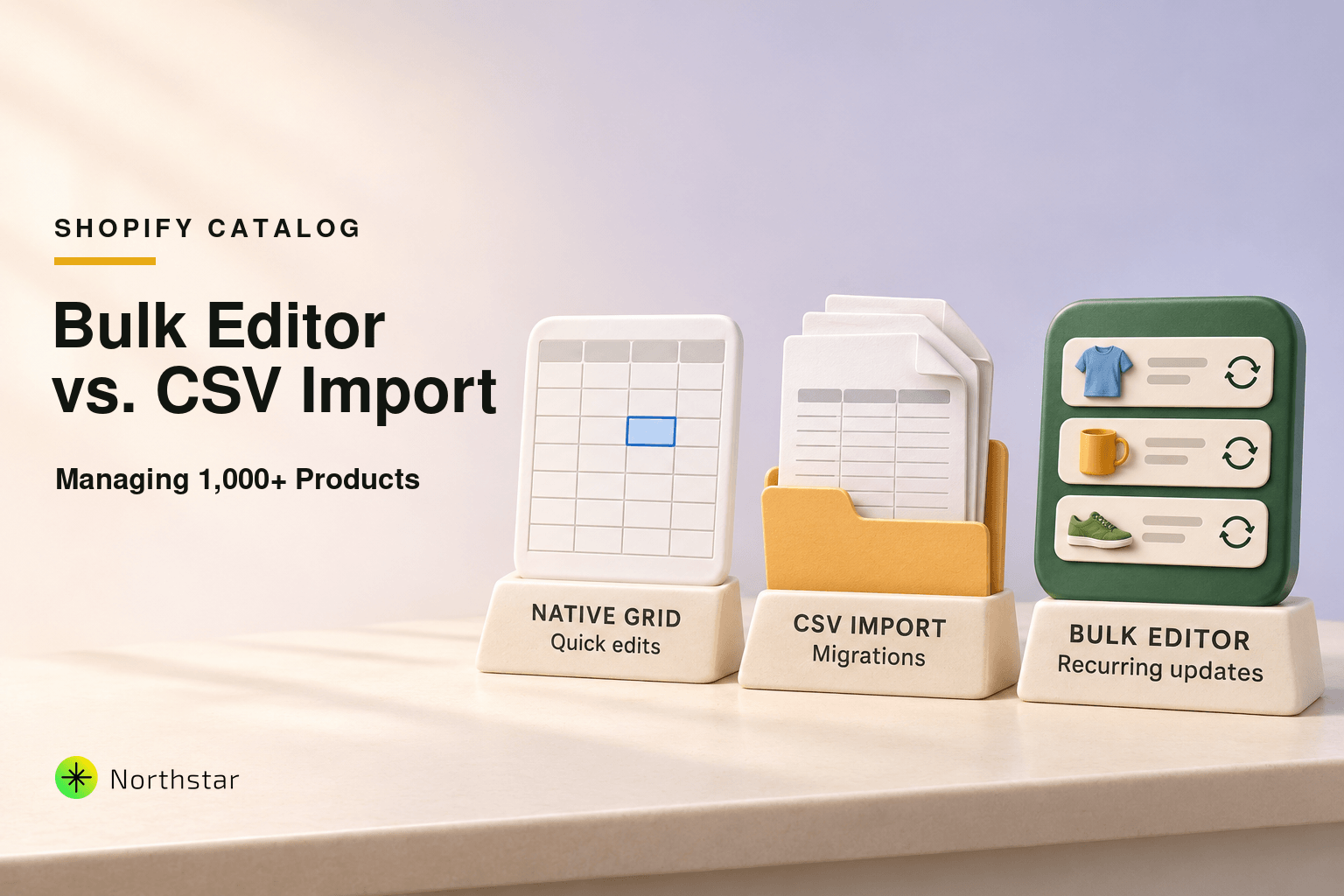
When your store scales past 1,000 SKUs, updating product data becomes one of the most time-consuming operational challenges in ecommerce. Whether you are running a seasonal price increase, restructuring tags, updating variant inventory, or standardizing vendor names, you face a core architectural choice: Shopify bulk editor vs. CSV import.
Both methods are built directly into the Shopify admin, but they were designed for completely different operational needs. Choose the wrong method, and you either spend hours manually paginating through browser tabs, or you import a corrupted file that wipes out months of carefully organized variant data.
In this breakdown, we compare Shopify's native bulk editor against CSV imports across six operational dimensions, uncover the hidden risks that cause CSV disasters, and introduce modern, spreadsheet-free alternatives for high-velocity stores.
Method 1: Shopify Native Bulk Editor (In-Admin Grid)
Shopify's native bulk editor allows merchants to select items from Products, click Bulk edit, add or remove columns (such as Price, Compare-at Price, SKU, Barcode, or Tags), and modify cells directly in a browser-based table.
When Native Bulk Edit Works Best:
- Quick Spot Adjustments (< 50 Products): If you need to quickly fix spelling in 15 product titles or update SKUs for a single collection, the native editor requires zero file downloads and validates inputs in real time.
- Immediate Cell Validation: If you accidentally type text into a numeric price cell, Shopify flags the border red instantly before you commit changes.
- Drag-to-Fill Values: You can drag the bottom-right corner of a cell down to quickly duplicate a vendor name or product type across neighboring rows.
Where Native Bulk Edit Breaks Down:
- Aggressive Pagination Limits: The admin grid is paginated in batches of 50 items. Editing 2,500 products means saving, waiting, navigating to the next page, and repeating the process 50 consecutive times.
- Zero Formula or Math Support: You cannot tell Shopify to "increase all prices by 12%" or "round compare-at prices to .99". You must calculate each price externally and type the final number manually.
- Browser Memory Lag: Loading hundreds of variant rows with image thumbnails frequently crashes browser tabs, leading to lost, unsaved work.
- No Version History or Undo: Once you click Save, the modifications are committed to your live database immediately. If you paste data into the wrong column, there is no undo button.
Method 2: Shopify CSV Export & Import (File-Based)
The traditional enterprise workaround for large catalogs is exporting products to a Comma-Separated Values (CSV) file, editing the file in software like Excel or Google Sheets, and re-importing it via Products > Import with the checkbox "Overwrite any current products that have the same handle" enabled.
When CSV Import Works Best:
- Initial Catalog Migration: Moving thousands of products from WooCommerce, Magento, or an ERP into a brand-new Shopify store is easiest via structured CSV files.
- Complex Math Calculations: Applying formula-driven tiered markups across thousands of raw supplier feeds can be executed using formulas before importing.
- Full Catalog Backups: Exporting a clean CSV provides an offline snapshot of your catalog before making major architectural changes.
The Critical Dangers of CSV Imports:
While CSV files seem powerful, they are notorious for triggering catastrophic catalog errors on live Shopify stores:
-
Barcode Scientific Notation & Leading Zero Deletion: When spreadsheet software opens a CSV, it automatically interprets 12- and 13-digit UPC/EAN barcodes as integers, stripping leading zeros (e.g.,
012345678901becomes12345678901) or converting them to scientific notation (1.23457E+11). Importing this file permanently corrupts your Google Shopping feed. -
Variant Disconnection & Orphaned Rows: In Shopify CSV architecture, multi-variant products share a single
Handlerow followed by individual variant lines. If you sort rows by price or inventory in your file editor, you split the handle hierarchy. Upon re-import, Shopify either creates duplicate product listings or wipes out existing variants. - Silent Metafield Deletion: Standard Shopify product CSV exports do not reliably export all custom metafield definitions. If you overwrite products using a basic template, custom attributes used for faceted search filters can be silently erased.
- No Native Rollback or Cancel Mechanism: Once a 10,000-row CSV import begins, Shopify processes it asynchronously in the cloud. You cannot pause, cancel, or undo it. If you notice an error 10% into the import, you must wait for the entire file to finish corrupting your catalog, then spend hours constructing a fix.
Head-to-Head Comparison: Native Bulk Edit vs. CSV Import
| Operational Criteria | Native Shopify Bulk Editor | Shopify CSV Import | NorthStar Bulk Editor |
|---|---|---|---|
| Catalog Size Sweet Spot | 1 – 100 products | 1,000+ products (risky) | 1 – 100,000+ products |
| Percentage / Math Rules | No (Manual entry) | Yes (External formulas) | Yes (Built-in rule engine) |
| Risk of Data Corruption | Low (Visual feedback) | High (Format & encoding bugs) | Zero (Pre-run validation) |
| Variant & SKU Safety | Safe (Direct cell edits) | Dangerous (Row-sorting bugs) | 100% Safe (Direct API links) |
| Rollback / Undo Button | No | No | Yes (1-Click instant revert) |
| Scheduled Automation | No | No | Yes (Timed start & end) |
| Faceted Metafield Support | Limited | Inconsistent | Full native support |
The Modern Alternative: Bulk Editing Without CSV Files
High-growth ecommerce brands are increasingly retiring manual CSV imports in favor of direct API-driven bulk editing apps like NorthStar Shopify Bulk Product Editor.
Instead of exporting files, wrestling with column delimiters, and praying that Excel didn't alter your barcodes, direct bulk editors operate with a modern three-step workflow:
- Filter by Dynamic Attributes: Target products using multi-condition rules—such as Collection, Vendor, Inventory Level, Tag, or Metafield value—without downloading a single byte of data.
- Execute Formulas with Live Preview: Whether you need to bulk increase prices by percentage, find and replace text in descriptions, or schedule category markdowns with automatic reversion, the tool previews every calculated change before applying it.
- Fail-Safe 1-Click Rollback: Every operation automatically saves a restorable snapshot. If you ever make an error, you can click Undo Bulk Edit to restore your previous catalog state in seconds.
Decision Framework: Which Method Should You Use?
- Use Native Bulk Edit if: You are tweaking fewer than 50 products, need to spot-check prices visually, and have no mathematical or automated schedule requirements.
- Use CSV Import if: You are performing an initial platform migration, importing a brand-new supplier line from a standardized warehouse feed, or archiving an offline backup.
- Use a Dedicated Bulk Editor App if: You manage 500+ products, frequently update prices or tags, require percentage rules, schedule promotional flash sales, or cannot afford the risk of CSV corruption on a live store.
Frequently Asked Questions
Is Shopify Bulk Editor or CSV import better for large product catalogs?
For catalogs with over 1,000 products, CSV imports handle volume better than Shopify's native bulk editor, but carry significant risks of file corruption, SKU truncation, and variant overwrites. For safe, repeatable catalog operations, a dedicated app like NorthStar Bulk Product Editor combines the visual speed of a grid with rule-based automation and 1-click rollback without touching CSV files.
Can I undo a Shopify CSV import if it has errors?
No. Shopify does not provide a native rollback or cancel button once a CSV import begins processing. If your CSV corrupts product data or wipes out variant prices, the only recovery is manually restoring a previous uncorrupted backup CSV file.
Why does Excel corrupt Shopify CSV barcodes and SKUs?
When opening a CSV file, standard spreadsheet software often converts large numeric values (like 12- or 13-digit UPC/EAN barcodes) into scientific notation (e.g., 1.23E+11) and automatically strips leading zeros from SKUs. Re-saving and importing this file permanently replaces your barcodes with corrupted text.
How many products can Shopify native bulk editor handle at once?
Shopify native bulk editor displays products in pages of up to 50 items. While you can select across pages, editing hundreds of items in the browser causes severe browser lag, input delays, and timeout errors on slower connections.
How can I bulk edit Shopify products without using CSV files?
You can use NorthStar Bulk Product Editor to filter your catalog by vendor, collection, tag, or inventory level, apply math formulas or find-and-replace rules directly in the browser, preview all matching rows, and queue changes safely in the background.
Ready to eliminate spreadsheet errors and protect your catalog data? Explore how NorthStar Shopify Bulk Product Editor empowers high-volume stores to edit thousands of products safely and effortlessly.