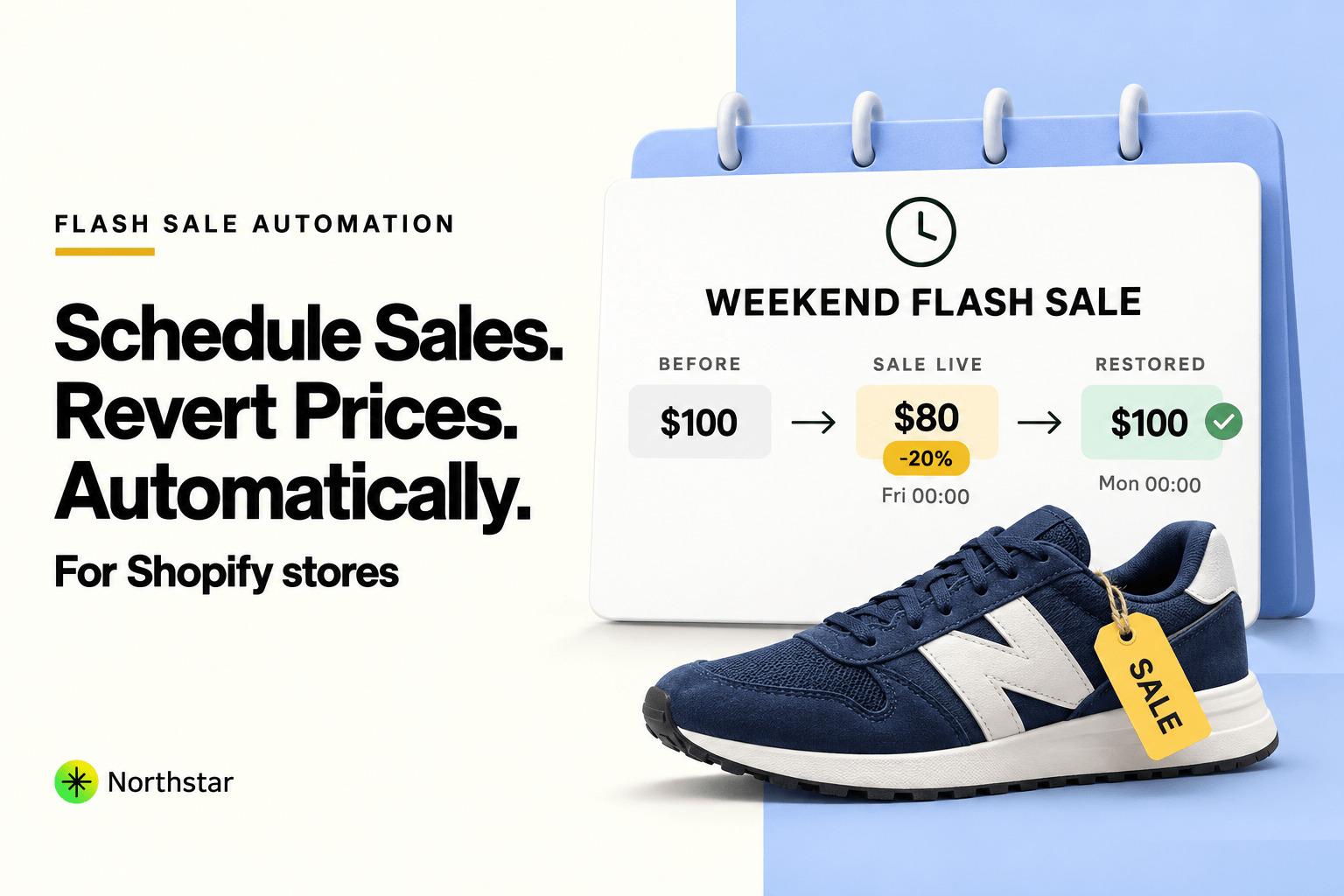
Running high-conversion promotional events—like 48-hour flash sales, Black Friday / Cyber Monday (BFCM) doorbusters, or weekend category clearances—is one of the most effective ways to accelerate ecommerce revenue. But for the merchant managing the store, running these campaigns is often an operational nightmare.
Many store owners ask: "Can I schedule price changes in Shopify?"
If you are running on standard Shopify (Basic, Shopify, or Advanced), the native answer is no. Unless you subscribe to enterprise Shopify Plus at $2,000+ per month to access Launchpad, Shopify provides no built-in mechanism to schedule price adjustments or automatically revert them when a promotion ends.
As a result, merchants resort to setting alarms for midnight on Friday to manually slash prices, and another alarm for 11:59 PM on Sunday to raise them back. If someone forgets, gets stuck in traffic, or makes a mistake, your store ends up selling inventory below cost on Monday morning.
In this step-by-step guide, we will show you how to run a flash sale in Shopify in bulk, how to schedule sales prices in Shopify automatically, and how to configure guaranteed, hands-off price rollbacks so your team never has to perform a midnight manual update again.
Why Discount Codes Fall Short for High-Impact Flash Sales
A common workaround suggested by Shopify support is using automatic discount codes. While discount codes have their place, they have major conversion limitations during major promotions:
-
No Visual Strikethrough Pricing: Discount codes only calculate the savings in the checkout drawer or cart. On category and product pages, shoppers see regular full prices. Studies show that visual strikethrough pricing (e.g.,
$120.00$89.00) boosts click-through and add-to-cart rates by over 24%. -
Missing Theme "SALE" Badges: Most Shopify themes trigger visual "SALE" badges, percentage off pills, and promotional collection placement based on the product's
compare_at_pricefield, which discount codes do not touch. - Checkout Surprise: Shoppers who don't realize a discount code is active may leave the site thinking prices are too high before ever reaching the checkout step.
Direct catalog price changes—where the selling price is discounted and the original price is moved to the compare-at price—consistently outperform discount codes for urgency-driven flash sales.
FTC Pricing Compliance Note: When displaying compare-at prices, ensure the previous price was a genuine, bona fide selling price offered for a reasonable period. Modern consumer protection laws (including FTC rules in the US and the Omnibus Directive in the EU) require transparency in promotional discount claims.
The Modern Alternative: Automated Scheduled Pricing & Rollback
Instead of manual midnight updates or paying for Shopify Plus, merchants use Shopify Bulk Product Editor by NorthStar. With built-in scheduled price changes for Shopify, you can configure both the launch event and the rollback event in advance.
The Complete 4-Stage Flash Sale Lifecycle
- Target Selection: Filter products by collection, vendor, or margin floor.
- Launch Automation (e.g., Friday 00:01): NorthStar discounts the price, stores the original price in
compare_at_price, and attaches a promotional tag. - Live Event: Shoppers see strikethrough pricing, sale badges, and custom collection banners.
- Automatic Rollback (e.g., Sunday 23:59): NorthStar automatically restores original prices, resets compare-at prices, and cleans up promotional tags without human intervention.
Step-by-Step Tutorial: How to Schedule a Flash Sale and Auto-Revert Prices
Follow these steps to schedule your next promotional campaign with total confidence:
Step 1: Filter Promotional Products
Launch NorthStar Bulk Product Editor inside your Shopify store. First, isolate the items included in your promotion:
- By Collection: e.g., all items in Summer Footwear.
- By Tag: e.g., products tagged with
upcoming-sale. - By Margin / Minimum Price: Exclude low-margin products by filtering out items where price is already below $25.
Step 2: Configure Promotional Pricing Rules
Under price operations, configure your discount formula using numeric price update rules:
- Copy Current Price to Compare-At Price: This locks in your current retail price as the strikethrough reference.
- Apply Percentage Discount: Set price =
Price - 20%. - Apply Rounding: Round discounted prices to
.99or.00for clean consumer presentation.
Step 3: Synchronize Promotional Tags Automatically
Coordinate your visual storefront merchandising during the sale. Enable tag automation to:
- Automatically add a sale tag to discounted products (such as
flash-saleorbfcm-2026) so automated smart collections and banner overlays display instantly. - Ensure that when the sale ends, NorthStar will remove the sale tag when the discount ends.
Example Sale Schedule Configuration:
{
  "sale_name": "Labor Day 72-Hour Flash Sale",
  "target_filter": { "collection": "Apparel > Outerwear" },
  "launch_time": "2026-09-04T00:01:00-04:00",
  "revert_time": "2026-09-06T23:59:00-04:00",
  "price_action": {
    "compare_at_price": "copy_from_current_price",
    "price": "decrease_by_25_percent",
    "rounding": "round_to_99_cents"
  },
  "tag_action": { "add_on_launch": "flash-sale", "remove_on_revert": "flash-sale" }
}
Step 4: Set Timezone-Aware Launch and Reversion Schedules
Specify your exact launch timestamp and reversion timestamp. NorthStar synchronizes with your Shopify store's local timezone (e.g., Eastern Time, Pacific Time, or GMT).
Toggle "Automatically revert to previous prices at end time". This schedules the exact reverse snapshot to execute the moment the clock strikes your end time.
Step 5: Preview the Scheduled Job in the Queue
Click Preview & Schedule. The preview engine shows you three distinct state columns:
- Current State: Current price and compare-at price.
- Sale State (Active Promotion): New promotional price and active compare-at anchor.
- Reverted State (Post-Sale): Exact restored values guaranteed when the timer expires.
| Product Title & SKU | Original State | Flash Sale State (Preview) | Reverted State (Guaranteed) |
|---|---|---|---|
Insulated Mountain ParkaSKU: PRK-MTN-01 |
Price: $200.00 Compare: None |
Price: $149.99 (-25%) Compare: $200.00 |
Price: $200.00 Compare: None |
Waterproof Trail ShellSKU: SHL-TRL-02 |
Price: $120.00 Compare: None |
Price: $89.99 (-25%) Compare: $120.00 |
Price: $120.00 Compare: None |
Once scheduled, the task sits safely in your active automations queue. You can turn off your laptop, go to sleep, and let NorthStar manage the entire sale flawlessly.
3 Mission-Critical Flash Sale Best Practices
1. Handling Products with Pre-Existing Compare-At Prices
If certain items are already on clearance with an existing compare-at price, you don't want to accidentally overwrite their original reference price. NorthStar allows you to choose: "Preserve existing compare-at price if higher than current price", ensuring legal compliance and accurate customer expectations.
2. Handling Variant Pricing Differences
If specific variants carry size upcharges (e.g., 2XL is $10 more than Medium), a flat percentage discount calculates each variant's discount proportionally, preserving your exact pricing tier structure during the sale and restoring it afterwards.
3. Cart Race Conditions at Sale Expiration
What happens if a customer adds an item to cart at 11:58 PM and checks out at 12:02 AM after prices reverted? Shopify evaluates cart prices at the moment of checkout initiation. Reverting prices promptly at the exact scheduled second ensures shoppers cannot exploit expired promotional rates.
Frequently Asked Questions: Scheduling Sales in Shopify
Can I schedule price changes in Shopify without Shopify Plus?
Yes, by using NorthStar Bulk Product Editor. While Shopify reserves its native Launchpad scheduling tool exclusively for Plus merchants paying $2,000+/month, NorthStar brings automated scheduling and rollback to merchants on all Shopify plans.
Will my scheduled price changes work if my computer is turned off?
Yes. Scheduled automations run on NorthStar's resilient cloud infrastructure. Once a task is scheduled, our background servers communicate directly with Shopify's APIs at the specified timestamp, regardless of whether your computer is online.
What happens if I need to cancel or extend a flash sale early?
You have complete control. You can open your active scheduled task and click "End Sale & Revert Now" to restore prices immediately, or adjust the end timestamp to extend the promotion by another 24 hours.
Can I schedule sales on specific collections or tags only?
Yes. NorthStar's filtering allows you to target specific collections, vendors, product types, tags, or custom metafield criteria. For a dedicated walk-through on setting up scheduled markdowns across entire department categories, check out our guide on how to automate markdown and discount schedules by product category.
Does NorthStar remove the compare-at price when reverting?
Yes. When configuring your scheduled sale, you can specify whether the compare-at price should be cleared completely upon reversion or restored to its exact pre-sale value.
Stop sacrificing your sleep and risking pricing errors. Transform how your store runs flash sales and seasonal promotions with NorthStar's scheduled price changes and automatic reversion automation today.